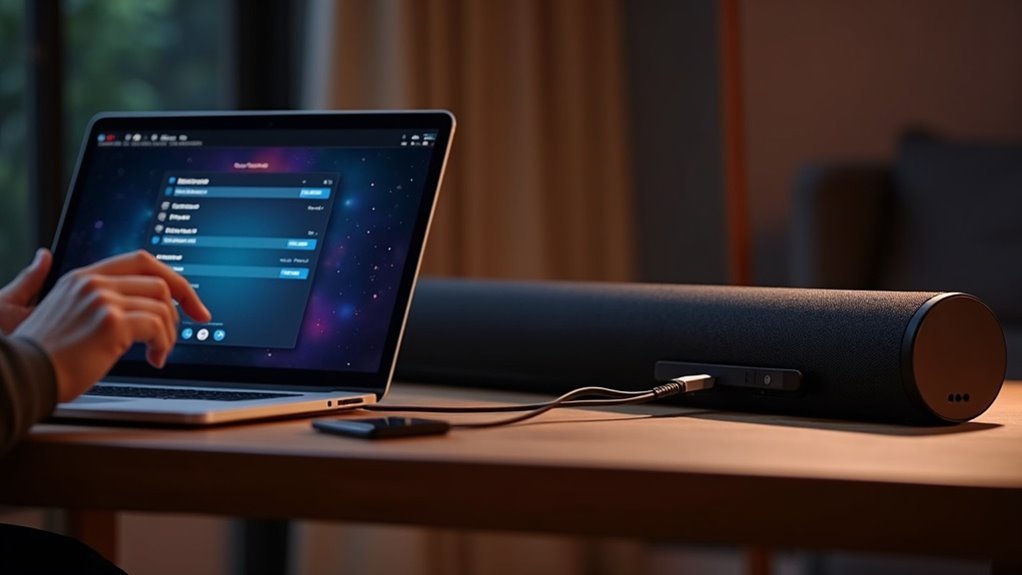
To pair your laptop to a soundbar, first ensure that the soundbar is compatible with your laptop. For a wireless connection, utilize Bluetooth: simply power on the soundbar and set it to pairing mode, then locate it in your laptop’s Bluetooth settings. Alternatively, you can connect via HDMI or AUX cable for a wired option. Once connected, be sure to adjust your laptop’s audio output settings to select the soundbar as your default audio device. Explore more tips on enhancing your soundbar experience for optimal audio enjoyment.
Key Takeaways
- Verify that the soundbar supports your chosen connection method: Bluetooth, AUX, optical audio, or HDMI.
- Ensure your laptop’s Bluetooth is enabled and it is discoverable in the settings menu.
- For Bluetooth pairing, put the soundbar in pairing mode and search for it in your laptop’s Bluetooth settings.
- For wired connections, securely connect the appropriate cable and select the correct input mode on the soundbar.
- Set the soundbar as the default audio output device in your laptop’s audio settings for optimal performance.
Understanding Soundbar Compatibility With Laptops
When you’re looking to pair a soundbar with a laptop, it’s important to understand their compatibility. Soundbars can connect to laptops via Bluetooth, AUX cables, or optical audio connections, depending on the model.
Before you attempt to pair, verify that your soundbar supports your preferred connection method. For instance, some soundbars designed for specific monitors may limit their compatibility with laptops.
Before pairing, confirm your soundbar’s compatibility with your chosen connection method, as some models may not work with laptops.
When using Bluetooth, check your laptop’s settings to make it discoverable and ensure the soundbar is in pairing mode.
Always consult the user manuals to grasp specific requirements for achieving the best audio experience with your soundbar.
Preparing Your Laptop for Connection
Before you can connect your laptop to the soundbar, ensure that your Bluetooth settings are enabled.
It’s also essential to check that your audio drivers are up to date, as outdated drivers can lead to connectivity issues.
Following these steps will prepare you for a seamless pairing experience with your soundbar.
Check Bluetooth Settings
How can you ensure your laptop is prepared to connect to a soundbar? Begin by opening the Start menu, navigating to Settings, and selecting Devices to access your Bluetooth settings. Verify that Bluetooth is activated by toggling the switch to the “On” position. Next, click on “Add Bluetooth or other device” and select “Bluetooth” to allow your laptop to search for nearby devices.
| Step | Action | Note |
|---|---|---|
| Open Settings | Navigate to Devices | Ensure Bluetooth is on |
| Add Device | Select “Bluetooth” | Start searching for devices |
| Prepare Soundbar | Power on and set to pairing mode | Look for flashing LED light |
Update Audio Drivers
Verifying that your laptop is ready to connect to a soundbar also means ensuring your audio drivers are up to date.
Updated drivers are crucial for compatibility and optimal sound performance. To check for updates, access Device Manager, expand the “Sound, video and game controllers” section, right-click your audio device, and select “Update driver.”
Alternatively, you can use Windows Update by navigating to Settings > Update & Security > Windows Update and clicking “Check for updates.” Many manufacturers also offer driver update utilities on their websites.
After updating your audio drivers, it’s recommended to restart your laptop to ensure the changes take effect, especially if you’re planning to connect via an audio cable.
Connecting via HDMI
To connect your laptop to a soundbar using HDMI, simply plug one end of the HDMI cable into your laptop’s HDMI output and the other into the soundbar’s HDMI IN port.
After that, make sure to adjust your sound settings to select the soundbar as your default playback device for optimal audio quality.
If you encounter issues like screen flickering during playback, check your HDMI cable and review your laptop’s display settings for any necessary adjustments.
Enjoy an enhanced audio experience with your soundbar!
HDMI Cable Connection Steps
Connecting your laptop to a soundbar via HDMI is a straightforward process that significantly enhances your audio experience.
First, plug one end of the HDMI cable into your laptop’s HDMI output port and the other end into the soundbar’s HDMI input, typically labeled as HDMI IN. Ensure that your soundbar is powered on and set to the correct HDMI input mode for optimal performance.
Next, access your laptop’s display settings and select the soundbar as your default audio output device. This step is crucial for routing the audio through the soundbar effectively, allowing you to enjoy immersive sound quality.
If you encounter any issues, double-check the HDMI cable connections and consider testing with another device to troubleshoot the problem.
Enjoy the superior audio that your soundbar provides!
Troubleshooting HDMI Issues
While setting up your soundbar with a laptop via HDMI is usually straightforward, issues can occasionally arise that disrupt the connection.
Here are some troubleshooting steps to help you resolve HDMI audio problems specifically related to your soundbar:
- Ensure the HDMI cable is securely connected to both the soundbar and the laptop.
- Access the laptop’s sound settings in the Control Panel, ensuring that the soundbar is selected as the default playback device.
- If you experience screen flickering while using the soundbar, adjust the refresh rate and resolution settings in the NVIDIA control panel.
- Verify that your soundbar supports HDMI Audio Return Channel (ARC) if you’re using it for audio input, as this feature can enhance audio performance.
Connecting via Bluetooth
When you want to enjoy better sound quality from your laptop through a soundbar, pairing it via Bluetooth is a straightforward solution. Follow these simple steps to connect:
| Step | Action | Note |
|---|---|---|
| 1. Power on the soundbar | Ensure it is in pairing mode | Look for a visible indicator light |
| 2. Open Bluetooth settings | Navigate to Start > Settings > Devices > Bluetooth | Ensure Bluetooth is enabled |
| 3. Add device | Click on “Add Bluetooth or other device” | Wait for your soundbar to appear |
| 4. Confirm connection | Select the soundbar and confirm if prompted | Set it as the default playback device |
Now, enjoy enhanced audio quality from your soundbar!
Connecting via AUX Cable
If you prefer a wired connection for your soundbar, using an AUX cable to link it to your laptop is a simple and effective option.
Follow these steps to connect:
- Ensure both your laptop and soundbar are powered on, and that the AUX cable is in good condition.
- Insert one end of the AUX cable into your laptop’s headphone jack, which is typically marked with a headphone icon.
- Connect the other end to the AUX input port on your soundbar.
- Adjust the volume settings on both devices to ensure optimal playback.
Adjusting Audio Output Settings
Once you’ve connected your soundbar to your laptop, adjusting the audio output settings is essential for ensuring you get the best sound quality from your soundbar.
Right-click the speaker icon in the taskbar and select “Playback devices” to view available audio outputs. Make sure your soundbar is set as the default playback device by right-clicking it and selecting “Set as Default Device.”
For optimal sound performance, navigate to the soundbar’s “Properties” to tweak enhancements and levels specifically suited for your soundbar. If you’re using Bluetooth, confirm that your soundbar is selected in the Bluetooth settings.
Lastly, check the Control Panel to verify that the correct output format is selected and that your soundbar isn’t muted, allowing you to fully enjoy your audio experience.
Troubleshooting Common Connection Issues
Troubleshooting connection issues between your soundbar and laptop can be straightforward if you follow a few key steps.
If you’re experiencing difficulties, try these:
If you’re encountering problems, consider following these troubleshooting steps for a smoother connection experience.
- Ensure the soundbar is powered on and in pairing mode.
- Check your laptop’s Bluetooth settings to confirm it’s discoverable and that the soundbar appears in the list of available devices.
- If you’re using a cable, make sure it’s securely connected and that the correct input mode is selected on the soundbar.
- Update your laptop’s audio and Bluetooth drivers, as outdated drivers may lead to recognition problems.
If issues persist, restart both devices to resolve any temporary glitches.
Don’t forget to log in or register for additional support!
Tips for Optimal Sound Quality
After resolving any connection issues between your laptop and soundbar, it’s time to focus on enhancing your audio experience with your soundbar.
Position the soundbar at ear level for ideal sound projection. Use high-quality cables, such as a premium AUX or optical cable, to reduce signal loss.
Adjust the equalizer settings to fine-tune specific frequencies according to your preferences for a more immersive sound experience. Keep your soundbar firmware up to date to benefit from the latest enhancements and features.
Finally, experiment with various audio output settings, like stereo versus surround sound, to find the configuration that delivers the best audio quality from your soundbar.
Don’t forget to check the power cable connections too!







