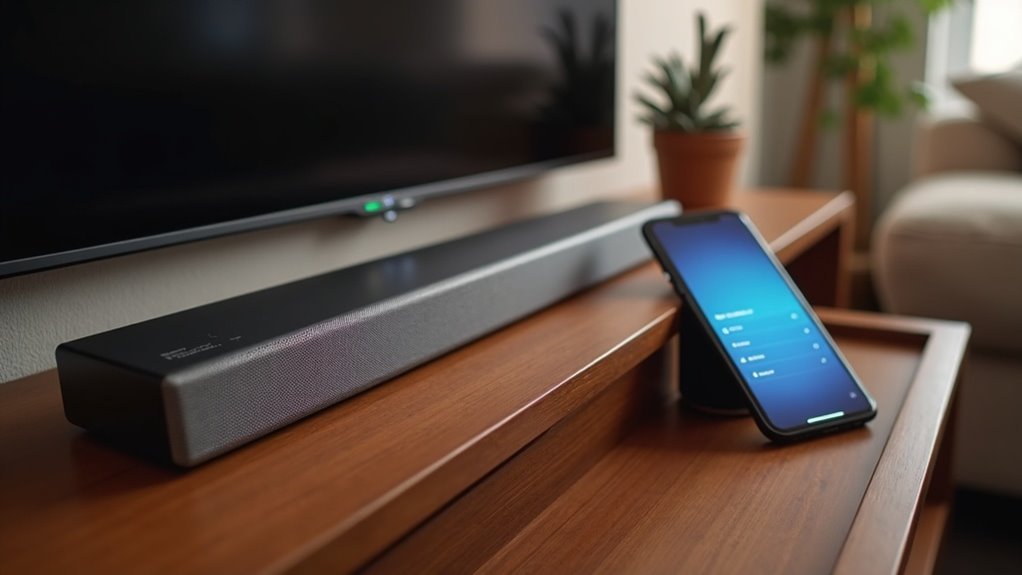
To pair your Bluetooth devices to a soundbar, first power on the soundbar and switch it to Bluetooth mode. Activate pairing mode by pressing the Bluetooth PAIR button on the remote or selecting BT with the Source button. On your device, turn on Bluetooth and search for the soundbar. Select it from the list to connect. Look for a confirmation display on the soundbar. For additional tips on troubleshooting and enhancing your soundbar audio experience, keep reading.
Key Takeaways
- Power on the soundbar and set it to Bluetooth mode, ensuring it displays “BT READY.”
- Activate pairing mode using the remote’s Bluetooth PAIR button or by pressing the Source button for 5 seconds.
- On your device, enable Bluetooth and search for the soundbar in the list of available devices.
- Select the soundbar from the list to connect, making sure it’s not connected to any other devices.
- Confirm the connection by checking for notifications on both your device and the soundbar display.
Preparing Your Soundbar for Pairing
To prepare your soundbar for pairing, first ensure it’s powered on and set to Bluetooth mode.
You can activate this by using the Bluetooth PAIR button on the remote or by pressing the Source button and selecting BT. Wait for the display to show “BT READY,” which indicates that your soundbar is ready to pair.
To prepare your soundbar for pairing, press the Bluetooth PAIR button or select BT using the Source button.
If necessary, hold the Source button for 5 seconds until the display reads “BT PAIRING.”
Make sure the soundbar isn’t connected to another Bluetooth device and keep it away from electronics that may cause interference. This will help create a smooth pairing experience with your devices.
Activating Pairing Mode
To activate pairing mode on your Bluetooth soundbar, you can use either the remote control or the soundbar itself.
Simply press the Bluetooth PAIR button on the remote, or select BT using the Source button on the soundbar.
If you don’t have the remote handy, refer to the manual for instructions on how to activate pairing directly on the device.
Using Remote Control
Activating pairing mode on your soundbar using the remote control is straightforward.
First, locate the Bluetooth PAIR button on your remote control and press it. Wait for the display to show “BT READY,” indicating the soundbar is ready to connect to a Bluetooth device.
If you don’t see this, hold the Source button for about 5 seconds until the display changes to “BT PAIRING.” This means your soundbar is now in pairing mode.
After that, navigate to your device’s Bluetooth settings to find and select your soundbar from the available devices list, and you’re all set to enjoy your audio experience!
Manual Soundbar Activation
If you don’t have a remote control handy, you can still manually activate pairing mode on your soundbar.
First, ensure your soundbar is powered on and not connected to any other Bluetooth devices.
Next, press the Source button on the soundbar and select BT. Wait for the display to show “BT READY,” then hold the Source button for 5 seconds until you see “BT PAIRING.”
This indicates that your soundbar is ready to connect. Look for indicator lights confirming it’s in pairing mode.
Finally, go to your device’s Bluetooth settings to find and select your soundbar from the list of available devices.
Connecting Your Device
To connect your device to the soundbar, begin by making sure the soundbar is powered on and set to Bluetooth mode.
Then, activate Bluetooth on your device and search for the soundbar in the list of available devices.
Once you select it, you’ll establish a connection, allowing you to fully enjoy your audio experience with enhanced sound quality.
Device Preparation Steps
Before you start connecting your soundbar to your device, ensure the soundbar is powered on and switched to Bluetooth mode. You can do this using the remote control or by pressing the Source button on the soundbar itself.
Next, verify that the Bluetooth functionality is enabled on your smartphone or tablet. Additionally, check that the soundbar isn’t currently connected to any other device to prevent pairing conflicts.
Access your device’s Bluetooth settings and, if necessary, remove the soundbar from the list of paired devices.
Finally, confirm that the soundbar is in pairing mode, which is indicated by messages such as ‘BT READY’ or ‘BT PAIRING,’ before proceeding to connect.
Pairing Mode Activation
Activating pairing mode on your soundbar is a straightforward process that guarantees your device connects seamlessly.
Follow these steps to get your soundbar ready:
- Press the Bluetooth PAIR button on the remote or the Source button on the soundbar, then select BT until you see BT READY.
- If you don’t have the remote, hold the Source button for 5 seconds until the display reads BT PAIRING.
- Ensure your soundbar isn’t connected to another device, as only one Bluetooth connection is allowed at a time.
- Look for a confirmation display indicating pairing mode, then select the soundbar from your device’s Bluetooth settings.
This website is dedicated to helping you make the most of your soundbar experience.
Confirming the Connection
Confirming the connection between your Bluetooth device and soundbar is essential for achieving an optimal audio experience.
After initiating pairing, check your Bluetooth device for a notification that confirms the connection. Additionally, look for an audio confirmation or an indicator light on the soundbar.
Check your Bluetooth device for a connection notification and listen for audio confirmation or an indicator light on the soundbar.
Ensure that the soundbar displays the TV name or “BT” on its screen to confirm that the connection has been established.
Furthermore, verify the audio output settings on your Bluetooth device to make sure the soundbar is selected as the output option.
If you encounter any issues, confirm that both devices aren’t connected to any other Bluetooth devices on the device list.
Troubleshooting Common Issues
When you’re having trouble connecting your Bluetooth device to your soundbar, several common issues could be at play.
To troubleshoot effectively, consider these steps:
- Ensure both your soundbar and Bluetooth device are powered on and in pairing mode.
- Check for previously connected devices and clear them from both the soundbar and your audio source.
- Restart both devices to refresh their systems and resolve any temporary connection issues.
- Move potential interference sources, such as Wi-Fi routers or microwaves, away to improve Bluetooth signal strength.
Enhancing Your Audio Experience
To truly elevate your audio experience, incorporating a soundbar into your setup is a game changer. Pairing your Bluetooth devices with a soundbar enhances sound quality, delivering clearer audio and deeper bass than traditional TV speakers.
Effortlessly stream music and movies wirelessly from your smartphone, tablet, or laptop, providing a versatile audio management solution. Many soundbars include built-in subwoofers, making them ideal for immersive movie nights or music sessions.
Additionally, Bluetooth pairing is quick and hassle-free, eliminating the need for messy wires. By connecting your devices this way, you ensure a clutter-free and enjoyable listening experience every time with your soundbar.
Keeping Your Devices Updated
Keeping your soundbar updated is essential for peak performance and compatibility. Regular firmware updates can enhance audio quality and minimize pairing problems with your Bluetooth devices.
Here are some key steps to follow:
- Check for firmware updates for your soundbar regularly.
- Ensure that any connected Bluetooth devices, like smartphones or tablets, have the latest operating system.
- Consult the soundbar’s manual or the manufacturer’s website for update instructions.
- Use any available app that notifies you of updates for easier management.







