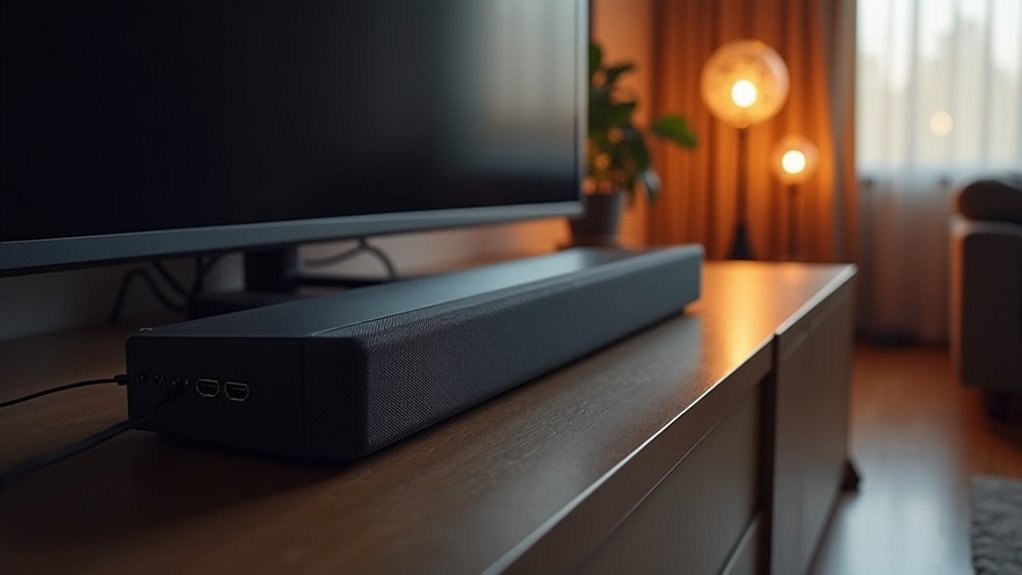
To connect your soundbar with an eARC adapter, first, ensure that both your TV and soundbar support eARC technology. Use a high-speed HDMI 2.1 cable and connect it to the eARC port on both devices. Next, set your TV’s audio output to eARC and check its settings for compatibility. If you experience any issues, double-check the connections and restart both devices. For more tips on optimizing your soundbar setup and enhancing your audio experience, continue to explore related advice on soundbars.
Key Takeaways
- Ensure both the soundbar and TV support eARC by checking for eARC or ARC labels on their HDMI ports.
- Use an Ultra High-Speed HDMI 2.1 cable to connect the soundbar’s eARC port to the TV’s eARC port.
- Adjust the audio settings in the TV menu to match eARC requirements for optimal soundbar performance.
- Restart both the soundbar and TV to refresh HDMI settings after making connections.
- Update the soundbar’s firmware to ensure compatibility and enhance overall audio performance.
What Is Earc?
eARC, or Enhanced Audio Return Channel, revolutionizes the way you experience sound with your soundbar setup.
Introduced with HDMI 2.1, eARC allows faster, higher-quality audio transmission between your soundbar and other devices. It supports uncompressed audio formats like Dolby TrueHD and DTS:X, delivering superior sound quality compared to standard ARC.
With a bandwidth of 48 Gbps, eARC effortlessly handles advanced audio formats and higher bitrates, making it ideal for immersive home theater experiences. Additionally, it features mandatory lip-sync compensation, ensuring that audio and video playback remain perfectly synchronized.
eARC is also backward-compatible with ARC, allowing you to connect eARC-enabled soundbars to older ARC systems, though some advanced features may be limited.
How Is Earc Different From ARC?
While both eARC and ARC serve the purpose of transmitting audio from your TV to a soundbar, they differ significantly in capabilities and technology.
eARC supports an impressive 48 Gbps bandwidth, allowing it to handle high-fidelity audio formats like Dolby TrueHD and DTS:X without compression, which is crucial for soundbar enthusiasts seeking superior sound quality.
In contrast, ARC maxes out at 18 Gbps and may compress audio signals, which can limit your soundbar’s performance.
The eARC feature includes essential functions like lip-sync compensation, ensuring your surround sound aligns perfectly with the visuals on your screen.
Although eARC is backward-compatible with ARC, to take full advantage of its advanced capabilities, both your TV and soundbar must support eARC.
Benefits of Using an Earc Soundbar
Using an eARC soundbar significantly elevates your audio experience by supporting high-bitrate formats such as Dolby TrueHD and DTS:X, ensuring you enjoy superior sound quality.
Additionally, eARC simplifies connections by minimizing the number of cables required while maintaining excellent sound transmission.
Its advanced format support also allows for a seamless integration across various devices, making an eARC soundbar an intelligent choice for enhancing your home theater setup.
Enhanced Audio Quality
When you connect an eARC soundbar, you unlock a premium audio experience that significantly elevates your enjoyment of movies and music.
The eARC port supports high-fidelity formats such as Dolby TrueHD and DTS:X, providing uncompressed, multi-channel audio at an impressive 192kHz/24-bit quality. With a robust bandwidth of 48 Gbps, eARC is capable of handling higher bitrate streams, ensuring you experience rich sound free from compression artifacts.
Additionally, eARC includes lip-sync compensation to ensure that audio and video remain perfectly synchronized.
Simplified Connections
Connecting an eARC soundbar simplifies your home theater setup by allowing you to transmit high-quality audio through a single HDMI cable.
This streamlined connection reduces clutter and eliminates the need for multiple cables or converters. eARC supports advanced audio formats, ensuring superior sound quality with its enhanced 48 Gbps bandwidth.
You also benefit from features like lip-sync compensation, which maintains audio-visual synchronization for a better viewing experience.
Plus, with CEC (Consumer Electronics Control), you can easily control your soundbar and all connected devices with a single remote, making your setup more efficient and user-friendly.
Enjoy the convenience of eARC connections with your soundbar today!
Advanced Format Support
eARC soundbars offer significant advantages by supporting advanced audio formats like Dolby TrueHD and DTS:X, which elevate your listening experience.
With a bandwidth of 48 Gbps, eARC enables lossless audio transmission, allowing soundbars to reproduce high-resolution audio without compression. This guarantees you’re hearing every detail, whether you’re watching movies or listening to music.
Additionally, eARC includes built-in lip-sync compensation, keeping audio and video perfectly in sync for an immersive experience.
Steps to Setup Your Earc Soundbar
To ensure optimal audio performance from your soundbar, begin by powering off both your TV and soundbar before establishing any connections.
Use an ultra high-speed HDMI 2.1 cable to connect the soundbar’s HDMI eARC port to the TV’s eARC port, which will provide the best sound quality.
Once connected, turn on both devices and navigate to the TV settings to adjust the audio output, making sure to prioritize eARC.
Enable Anynet+ (HDMI-CEC) in the TV settings for easy control of the soundbar with your TV remote.
Lastly, confirm that the HDMI eARC Mode is activated in the TV settings to ensure proper audio transmission.
Troubleshooting Common Earc Issues
When troubleshooting eARC issues with your soundbar, start by checking your cable connections to ensure everything is secure.
Next, verify your audio settings to confirm they align with eARC requirements specific to soundbars.
Finally, keep your soundbar’s firmware updated, as this can resolve compatibility problems and enhance performance.
Check Cable Connections
One essential step in troubleshooting common soundbar eARC issues is checking your cable connections.
Verify that both your TV and soundbar are powered on and plugged into the correct HDMI eARC ports, as only specific ports support this functionality.
Use an Ultra High-Speed HDMI 2.1 cable, since standard cables often lack the necessary bandwidth for optimal audio performance.
Ensure that all connections are secure; loose or damaged cables can lead to audio problems.
If sound isn’t transmitted, restart both devices to refresh their HDMI settings.
Lastly, consult the settings menu to confirm that Anynet+ (HDMI-CEC) and HDMI eARC Mode are enabled for the best audio experience with your soundbar.
Verify Audio Settings
Before diving into troubleshooting eARC issues with your soundbar, it’s important to verify that your TV’s audio settings are properly configured. Check the audio output settings in your TV menu; make sure it’s set to “Bitstream” or “Auto.” Activate Anynet+ (HDMI-CEC) for device communication. If problems persist, toggle the audio output format between “PCM” and “Bitstream.” Also, confirm you’re using an ultra high-speed HDMI 2.1 cable for maximum eARC functionality. Restart both the TV and soundbar after adjustments.
| Setting | Configuration | Notes |
|---|---|---|
| Audio Output | Bitstream/Auto | Check for compatibility with soundbar |
| Anynet+ (HDMI-CEC) | Enabled | Required for eARC with soundbar |
| HDMI Cable | Ultra High-Speed 2.1 | Crucial for soundbar eARC functionality |
| Restart Devices | Yes | Apply new settings to soundbar |
Update Device Firmware
To ensure your soundbar operates seamlessly with eARC features, it’s essential to regularly update its firmware. Firmware updates enhance compatibility and resolve issues that may hinder your audio experience.
To update your soundbar’s firmware, navigate to your soundbar’s settings, typically found under “System” or “About,” and select software updates. Some soundbars offer automatic updates, while others may require manual downloads via USB or network.
After completing the update, restart your soundbar to apply the changes and verify that eARC functionality is working correctly. This process also helps enable HDMI eARC, ensuring peak performance when using HDMI ARC connections for your soundbar.
Compatibility With Other Devices
When connecting a soundbar, ensuring compatibility with other devices is crucial for achieving optimal audio performance.
Ensuring device compatibility is essential for optimal audio performance when connecting your soundbar.
Follow these steps to guarantee a proper connection:
- Check for eARC support: Confirm that both your soundbar and TV support eARC, which is typically found in devices manufactured since 2019.
- Inspect HDMI ports: Look for eARC or ARC labels on the HDMI ports; only specific ports will enable enhanced audio features.
- Use the right cable: Connect an ultra high-speed HDMI 2.1 cable from the soundbar’s eARC port to the TV’s eARC port for the best audio quality and bandwidth.
Verifying these aspects will significantly enhance your audio experience with your soundbar.
Enhancing Audio Quality With Earc
While enjoying your favorite movies or music, utilizing eARC can greatly enhance your soundbar’s audio quality.
eARC (Enhanced Audio Return Channel) supports high bitrate audio formats like Dolby TrueHD and DTS:X, allowing for a richer sound experience directly through your soundbar.
With an HDMI cable, eARC transmits uncompressed audio, ensuring immersive playback that truly brings your entertainment to life.
Additionally, its lip-sync compensation feature minimizes audio-visual synchronization issues, further improving your overall viewing experience.
eARC is backward-compatible with older ARC devices, so you can still elevate your home theater system’s audio quality.
Using an eARC-enabled soundbar optimizes your setup, delivering a theater-like experience right from your TV.







