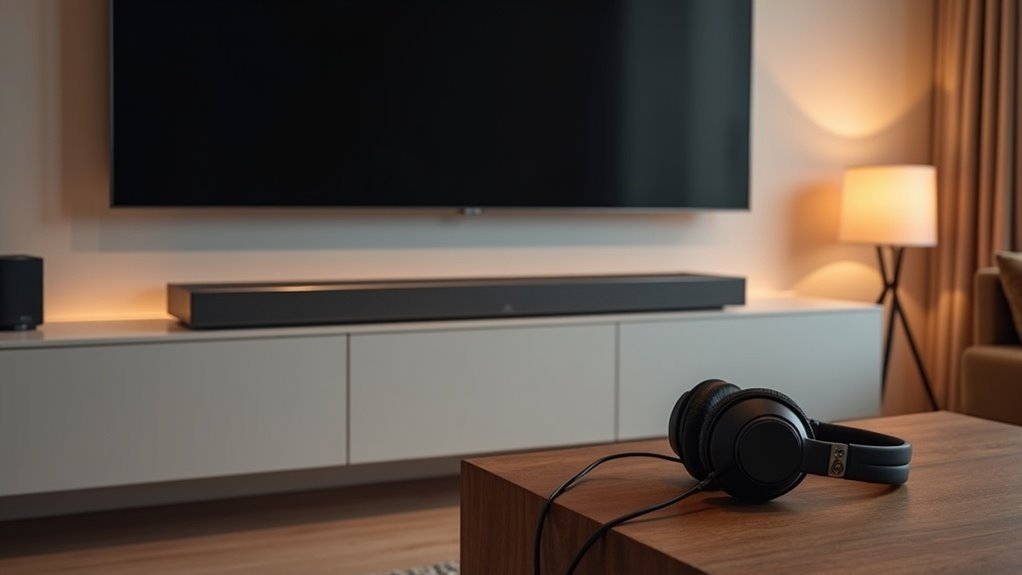
To connect a soundbar and headphones to your TV, first use the HDMI ARC or optical output for the soundbar to ensure high-quality audio. Make sure to check your TV’s audio settings to direct sound to the soundbar. For Bluetooth headphones, activate pairing mode on your headphones and search for devices in the TV’s audio settings. If you prefer wired headphones, verify if your TV has a 3.5mm jack or utilize an adapter. Continue to explore various connection options to enhance your audio experience while enjoying your soundbar.
Key Takeaways
- Connect the soundbar to the TV using HDMI ARC or optical cable for optimal audio quality.
- Ensure the TV’s audio output settings are set to direct sound to the soundbar for the best experience.
- For Bluetooth headphones, enable their pairing mode and select them from the TV’s audio output settings to enjoy private listening.
- If your TV doesn’t have a dedicated audio output for wired headphones, use an optical to RCA adapter.
- Review the soundbar settings to avoid any conflicting connections and ensure sound is directed correctly for an enhanced audio experience.
Understanding Your TV’s Audio Outputs
When setting up a soundbar with your TV, understanding the audio outputs is essential. Most modern TVs, like the Sony Bravia XBR-55X950H, primarily feature HDMI ARC and optical output.
HDMI ARC allows for two-way audio, enhancing sound quality and simplifying device control when connecting to a soundbar. In contrast, the optical output enables high-quality sound transfer but typically supports only one audio device unless you use a splitter.
Some TVs may lack traditional audio outputs, making it necessary to utilize adapters for connecting your soundbar. Knowing these capabilities helps you connect your soundbar effectively, avoiding compatibility issues and ensuring an immersive audio experience.
Connecting a Soundbar via HDMI ARC or Optical Cable
To successfully connect your soundbar to the TV, you can choose between HDMI ARC and optical cable, both of which offer reliable audio transmission.
For HDMI ARC, connect the soundbar to the TV’s HDMI ARC port using a compatible cable, ensuring both devices support this feature for optimal sound quality.
To utilize HDMI ARC, connect your soundbar to the TV’s HDMI ARC port with a compatible cable for superior audio quality.
Alternatively, use an optical cable by linking the TV’s optical audio output to the soundbar’s optical input, and adjust the soundbar to the correct audio mode for the best experience.
If your TV lacks dual audio output, consider using an HDMI audio extractor to enable simultaneous connections to both the soundbar and headphones, providing you with versatile audio options for enjoying your favorite content.
Pairing Bluetooth Headphones With Your TV
Connecting a soundbar to your TV can significantly elevate your audio experience, providing richer sound quality for movies, shows, and music without disturbing others. To start, enable your TV’s audio output settings and put your soundbar in pairing mode. Navigate to the “Settings” menu on your TV, then select the audio or sound option to search for available devices. When your soundbar appears in the list, select it to initiate pairing. After successful pairing, adjust the audio output settings to ensure the TV sound is directed to your soundbar. Keep in mind that not all TVs support simultaneous audio output; check your TV’s specifications for any limitations.
| Step | Action |
|---|---|
| 1. Enable Audio | Turn on TV’s audio output setting |
| 2. Pairing Mode | Activate pairing mode on soundbar |
| 3. Settings Menu | Access settings on your TV |
| 4. Select Soundbar | Choose soundbar from the list |
| 5. Adjust Audio Output | Set TV sound to soundbar output |
Using an Audio Jack for Wired Headphones
If you’re looking for an enhanced audio experience, using a soundbar can be a fantastic option.
Many modern TVs, like the Sony Bravia XBR-55X950H, may not come equipped with a dedicated 3.5mm headphone jack. Instead, soundbars connect via HDMI, optical, or Bluetooth for superior sound quality.
Using a soundbar can significantly improve audio performance and provide a more immersive listening experience compared to built-in TV speakers. Be sure to adjust your audio output settings to ensure sound is directed through the soundbar for optimal performance.
If your TV lacks direct audio output options, consider using an optical to RCA adapter to connect your soundbar and enjoy rich, dynamic sound.
Troubleshooting Common Audio Connection Issues
When you encounter audio connection problems between your soundbar and headphones, start by checking your soundbar’s audio output settings.
Confirm that your soundbar is set to the correct input and that no conflicting connections, like HDMI cables, are present.
Adjusting these settings can resolve many common issues and help you achieve simultaneous audio output through your soundbar.
Identifying Connection Problems
To successfully troubleshoot audio connection issues specifically with your soundbar, start by verifying that the TV’s audio output settings are correctly configured. Many TVs default to a single audio output, so check settings for simultaneous use with your soundbar. If you’re using an HDMI cable for the soundbar, consider using an HDMI audio extractor to split the signal if needed. For optical connections, ensure compatibility and proper configurations are in place. If you experience low sound quality from the soundbar, check the connections to ensure they are secure and that the soundbar is compatible with your TV’s output.
| Issue | Potential Cause | Solution |
|---|---|---|
| No sound from soundbar | Incorrect audio settings | Adjust TV output settings |
| Soundbar not working | Loose connections | Check cable connections |
| Low sound quality | Incompatible settings or cables | Test with different configurations |
| Soundbar not detected | Faulty HDMI cable | Replace HDMI cable |
| Optical connection issues | Wrong configuration | Refer to soundbar user manual |
Adjusting Audio Settings
Adjusting your soundbar’s audio settings is essential for achieving ideal sound quality when using both a soundbar and headphones.
Follow these key steps to troubleshoot common audio connection issues:
- Verify that your soundbar allows simultaneous audio output to both devices.
- Check the soundbar’s settings for switching between HDMI ARC and optical inputs.
- Set the soundbar to OPT mode if using an optical connection.
- Consider utilizing an HDMI audio extractor for dual output.
- Regularly inspect cables to confirm secure connections and eliminate conflicts.
Enhancing Your Listening Experience With Multiple Devices
Enhancing Your Listening Experience With Soundbars
Connecting a soundbar to your TV can significantly improve your audio enjoyment. To maximize this experience, consider using an HDMI audio extractor to enable your soundbar to deliver superior sound quality.
An optical audio splitter can also be beneficial, allowing you to connect your soundbar while maintaining independent volume control without needing additional audio sources.
If you enjoy the freedom of wireless listening, opt for Bluetooth headphones; just ensure your TV’s Bluetooth is enabled for optimal connectivity.
For smart TVs that lack multiple outputs, investing in a Bluetooth transmitter or audio splitter can enhance your audio flexibility while ensuring that your soundbar remains the primary focus for outstanding sound quality.







