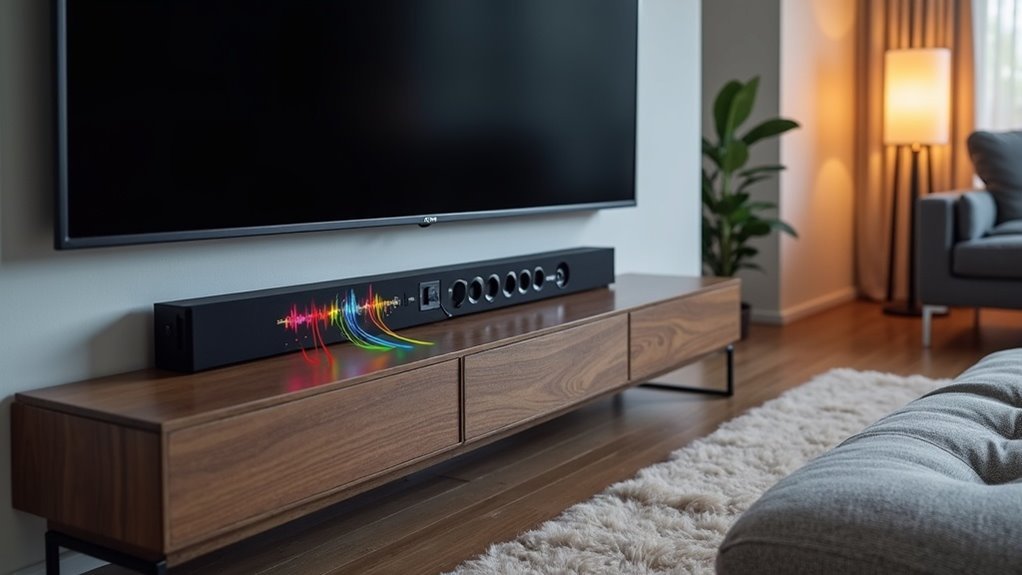
To check if your TV’s audio output matches your soundbar’s capabilities, start by verifying the supported audio formats for both devices. Access your soundbar’s specifications to understand its compatibility with different audio formats. Next, navigate to your TV’s audio settings to configure the output type (HDMI ARC, optical), ensuring it aligns with your soundbar’s requirements. Test various audio sources while adjusting the output format to find the best match for your soundbar. If issues arise, troubleshoot connection or settings problems specific to the soundbar. You’ll find additional tips to enhance your audio experience with your soundbar by continuing onward.
Key Takeaways
- Access the soundbar’s audio settings to review the available audio output formats compatible with your TV.
- Verify the connection type (HDMI ARC, optical) aligns with the soundbar’s supported input formats.
- Check the soundbar’s user manual or manufacturer’s website for a list of supported audio formats.
- Test various audio sources to see if they match the soundbar’s capabilities and adjust settings accordingly.
- Use the soundbar’s audio settings menu to select a compatible format, like PCM or Dolby Digital, for optimal performance.
Verify Supported Audio Formats on Your Soundbar
How can you ensure your soundbar provides the ultimate audio experience? Start by consulting the user manual for a comprehensive list of supported audio formats, such as PCM, Dolby Digital, and DTS.
For detailed specifications regarding maximum audio quality, bitrate, and sample rates, visit the manufacturer’s website. If you’re aiming for an immersive sound experience, confirm that your soundbar supports advanced formats like Dolby Atmos or DTS:X.
Use the audio settings menu to check the current input formats, ensuring compatibility with your TV. Additionally, many soundbars come with an LED indicator that displays detected audio formats, allowing for quick and easy verification of supported formats in real-time.
Check TV Audio Output Settings
To optimize your soundbar’s performance, begin by accessing your TV’s audio settings to review the available audio format options specifically for soundbars.
Ensure that the output connection type, such as HDMI ARC or optical, is correctly configured to match your soundbar for seamless integration.
Lastly, check that the volume level settings are appropriately adjusted to enhance your audio experience with your soundbar.
Audio Format Options
When setting up your soundbar for optimal performance with your TV, it’s crucial to check the audio output settings to explore the available audio format options.
Navigate to the settings menu to find formats like PCM, Dolby Digital, and DTS. Ensure that the selected audio format on your TV is compatible with your soundbar; some soundbars may not support advanced formats like Dolby Atmos.
If you’re using HDMI ARC or eARC, choose an audio format that your soundbar can process effectively to avoid audio delays. Switching to PCM often minimizes this delay, allowing the TV to manage audio unpacking directly.
For the best experience, refer to your soundbar’s manual for the supported audio formats.
Output Connection Types
After verifying your soundbar’s audio format options are set correctly, the next step is to examine your TV’s audio output settings.
Check the output connection types used with your soundbar, such as HDMI ARC, optical, or RCA. Confirm the audio output format selected on your TV aligns with your soundbar’s capabilities; some soundbars may not support formats like Dolby Atmos.
Navigate to your audio settings menu to choose the appropriate output option, like PCM or Bitstream.
Finally, if available, use the HDMI eARC port for enhanced audio quality, ensuring you’re using a compatible HDMI cable for peak performance with your soundbar.
Volume Level Settings
One essential aspect of ensuring your soundbar functions properly is checking the TV’s volume level settings.
Start by accessing the TV’s audio settings to confirm the audio output isn’t muted or set too low. If the volume’s too low, it can negatively impact the soundbar’s performance, especially when connected via HDMI.
Double-check that the audio output is directed to the soundbar and adjust any additional audio modes or enhancements as needed.
Testing various audio sources will also help confirm that your soundbar delivers ideal audio quality, ensuring your experience is immersive and distortion-free.
Test Different Audio Sources
To ensure your soundbar performs at its best, it’s essential to test a variety of audio sources such as streaming services and gaming consoles to confirm compatibility with different audio formats.
Be sure to check your TV’s audio output settings, ensuring they align with your soundbar’s capabilities, whether it’s PCM or Dolby Digital.
Additionally, utilize HDMI and optical connections, as these can significantly enhance audio quality and overall performance of your soundbar.
Check Audio Format Compatibility
When checking audio format compatibility between your soundbar and TV, it’s essential to test various audio sources to identify any discrepancies.
Start by ensuring your soundbar’s audio settings align with your TV’s capabilities, selecting PCM if advanced formats like DTS or Dolby Atmos aren’t supported.
Test streaming services, Blu-ray players, and gaming consoles to detect specific formats causing issues. Utilize your soundbar’s audio format options to match your TV’s output.
Finally, disable any additional audio processing features on the TV to accurately assess compatibility, consulting user manuals for supported audio formats and requirements during the HDMI ARC connection setup.
Test HDMI and Optical
Testing both HDMI and optical audio connections is essential for ensuring your soundbar receives the appropriate audio formats from your TV.
Start by checking your TV audio settings to confirm output formats like PCM, as some soundbars may not support formats like DTS or Dolby Atmos.
When using HDMI, connect to the designated HDMI ARC or eARC port for optimal performance.
It’s a good idea to switch between HDMI ARC and optical cable connections to determine which one delivers the best sound quality for your soundbar.
Additionally, verify the supported audio formats of your soundbar and ensure they align with your TV’s output options.
This thorough process will help guarantee that your soundbar operates at its highest potential for an exceptional audio experience.
Use High-Quality HDMI Cables
Using high-quality HDMI cables is essential for maximizing the audio performance of your soundbar in conjunction with your TV.
Choose Premium High Speed HDMI or Ultra High Speed HDMI cables, as they facilitate higher bandwidth audio formats, including uncompressed audio and immersive sound technologies like Dolby Atmos and DTS:X.
Be sure to connect to the designated HDMI eARC port on your TV, as this allows for advanced audio features and better synchronization with your soundbar.
Investing in certified HDMI cables helps prevent issues such as audio delay and distortion, ensuring that the audio output from your TV aligns seamlessly with the capabilities of your soundbar.
Adjust Audio Settings for Compatibility
To ensure optimal audio performance from your soundbar, it’s crucial to adjust your TV’s audio settings for compatibility.
Begin by navigating to your TV’s audio settings menu to verify that HDMI ARC or optical output is enabled.
Next, check the audio output settings and set them to a format that works well with your soundbar, usually PCM.
Be aware that formats like Dolby Atmos might require specific configurations.
Disable any audio enhancements such as surround sound or dialogue enhancement to prevent potential delays.
Lastly, test various audio sources, including streaming apps, to ensure the output matches your soundbar’s capabilities for all types of content.
Troubleshoot Common Audio Issues
Audio issues with your soundbar can arise from various common sources, and quickly identifying them can save you time and frustration. Begin by checking your soundbar’s audio input settings and ensure they match your TV’s output capabilities. Confirm that you are using HDMI ARC or the appropriate connection type. Additionally, examine audio delay settings on both devices to avoid sync problems. Make sure to update the firmware for both the soundbar and TV to enhance performance. Finally, verify the audio format being used from your TV; unsupported formats may lead to distorted sound.
| Issue | Solution |
|---|---|
| Incorrect settings | Match soundbar audio input settings |
| Audio delay | Adjust delay settings on both devices |
| Wrong connection | Use HDMI ARC or compatible connection |
| Outdated firmware | Update soundbar and TV firmware |
| Unsupported format | Check audio format compatibility |







