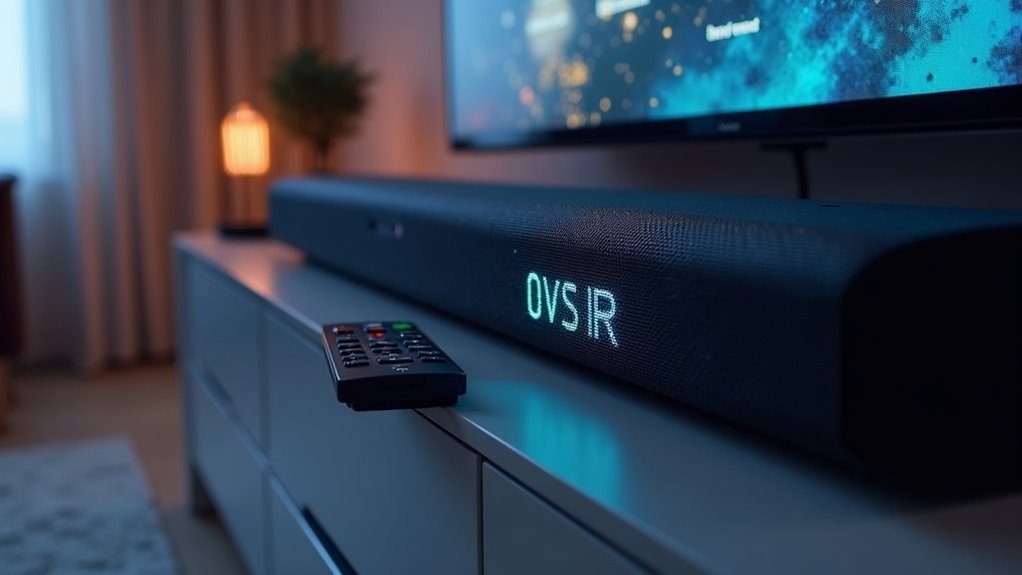
To check your soundbar’s firmware version, press and hold the Sound Control button for 6 seconds to power off the unit. Look at the display for the firmware version, focusing on the numbers after the letter B. It’s crucial to check this regularly to ensure you’re running the latest version for optimal sound quality and performance. If you’re interested in learning how to update your firmware or troubleshoot common soundbar issues, continue exploring the available options on our website.
Key Takeaways
- Press and hold the Sound Control button for 6 seconds to power off your soundbar.
- Observe the display for the firmware version, focusing on the numbers after the letter B.
- Regularly check the firmware version to determine if updates are necessary for optimal soundbar performance.
- Keeping the firmware updated can enhance your soundbar’s performance and resolve any potential bugs.
- If you encounter issues while checking the firmware, consult the manufacturer’s support resources for assistance.
Understanding Firmware and Its Importance
Firmware is the essential software embedded in your soundbar that governs its functions and features, making it vital to keep it updated for optimal performance.
Each soundbar model comes with a specific firmware version, which denotes the latest updates and enhancements available. By routinely checking this version, you can ascertain whether firmware updates are needed, enabling you to resolve bugs and unlock new features.
Manufacturers provide these updates to improve compatibility, enhance audio quality, and fix connectivity issues. Understanding the importance of firmware allows you to effectively maintain your soundbar, ensuring its longevity and guaranteeing that you achieve the best possible performance from your audio device.
Steps to Check Your Soundbar’s Firmware Version
To check your soundbar’s firmware version, you’ll need to access the soundbar controls.
Press and hold the Sound Control button for 6 seconds to power off the unit, then observe the display for the firmware version, focusing on the numbers after the letter B.
This process ensures you can verify the current version and determine if an update is necessary for optimal sound performance.
Accessing Soundbar Controls
Before checking your soundbar’s firmware version, ensure you have easy access to the device’s controls.
You’ll want to be prepared to navigate the settings effectively. Here are some key points to consider:
- Familiarize yourself with the Sound Control button (gear icon).
- Make sure the soundbar is plugged in and powered on.
- Keep the manufacturer’s support page handy for reference.
Reading Firmware Display
How can you easily check the firmware version of your soundbar?
Start by pressing and holding the Sound Control (gear icon) for six seconds until the unit powers off. Once it restarts, the firmware version will display on the soundbar’s screen, typically following the letter B.
Carefully note the version numbers to see if you’re up to date with the latest firmware. It’s essential to check this regularly, as updates can improve performance and add features specific to soundbars.
If your version is lower than what’s available on the manufacturer’s website, consider updating your firmware via USB or SmartThings for optimal sound quality and functionality.
Updating Firmware via SmartThings
To update your soundbar’s firmware via SmartThings, begin by verifying that it’s connected to Wi-Fi.
Reset the soundbar and its components by unplugging them for 30 seconds.
Next, open the SmartThings app, locate your soundbar within the app, access the control menu, and follow the instructions provided to start the firmware update.
SmartThings App Navigation
While navigating through this website dedicated to soundbars, you can easily check and update your soundbar’s firmware to ensure peak performance.
Follow these steps to navigate effectively:
- Confirm your soundbar is connected to the Wi-Fi network.
- Open the SmartThings app and select your soundbar from the control menu.
- Tap the three vertical dots in the upper right corner to access settings.
Once in the “Information” section, you can view the current firmware version.
If an update is needed, initiate it by selecting “Firmware Update” and then “Update Now” directly from this menu for a seamless experience.
Firmware Update Process
Updating your soundbar’s firmware through the SmartThings app is a straightforward process that enhances your device’s performance and functionality.
First, ensure your soundbar is connected to Wi-Fi and that the SmartThings app is installed on your device.
Begin by unplugging the soundbar, subwoofer, and rear speakers for 30 seconds to reset the connection.
Next, open the SmartThings app, select your soundbar, and tap the three vertical dots to access the Information section.
From there, navigate to Firmware Update and tap “Update Now” to initiate the process.
Finally, keep an eye on the app for confirmation of the update’s completion, as the installation may take a few moments.
Updating Firmware via USB
Before you begin updating your soundbar’s firmware via USB, make sure you’ve downloaded the correct firmware file for your specific soundbar model from the Samsung Download Center.
Ensure you download the correct firmware file for your soundbar model from the Samsung Download Center before starting the update.
Follow these steps to proceed:
- Unzip the firmware file and copy it directly to the USB drive without placing it in any folders.
- Connect the USB drive to your powered-off soundbar, then turn it on and switch to the USB source.
- The update will start automatically; avoid turning off the soundbar during this process.
Once complete, your soundbar will restart and display a confirmation message indicating successful firmware installation.
Troubleshooting Common Firmware Issues
When you encounter issues with your soundbar, it’s important to troubleshoot potential firmware problems first.
Begin by checking the firmware version; hold the Sound Control (gear icon) for 6 seconds until it displays. Pay attention to the numbers after the letter “B,” as they represent critical updates.
If your soundbar isn’t performing correctly, an outdated firmware could be the culprit. Regularly checking for updates can enhance functionality and resolve bugs.
If you face challenges during the update process, consult the manufacturer’s support resources for model-specific troubleshooting guides to help you navigate the issues effectively.
Contacting Manufacturer Support for Assistance
Sometimes, you might need to reach out to the manufacturer for support regarding your soundbar’s firmware version. Here are a few ways to get the assistance you need:
- Visit the soundbar manufacturer’s official website or call their customer support number for direct help.
- Use live chat options available on sites like Samsung or Bose for immediate inquiries about your soundbar.
- Access the manufacturer’s mobile app, such as Samsung Members, for support resources and firmware details related to your soundbar.
When contacting support, have your soundbar’s model number and other relevant details ready to expedite the process.
Additionally, check the FAQ section for specific instructions about your soundbar before reaching out.
Keeping Your Soundbar Updated for Optimal Performance
Keeping your soundbar updated is crucial for achieving optimal performance and an enhanced audio experience. Soundbar manufacturers frequently release firmware updates that introduce new features and address existing bugs.
Regularly checking your soundbar’s firmware version allows you to access the latest updates, which can improve audio performance and connectivity stability. To check your firmware version, press and hold the Sound Control (gear icon) for 6 seconds until the unit powers off, displaying the current version.
You can update the firmware via USB or through smart apps like SmartThings, which helps reduce connectivity issues and enhances sound quality for an ideal listening experience.
Stay current with your soundbar for the best audio performance!







