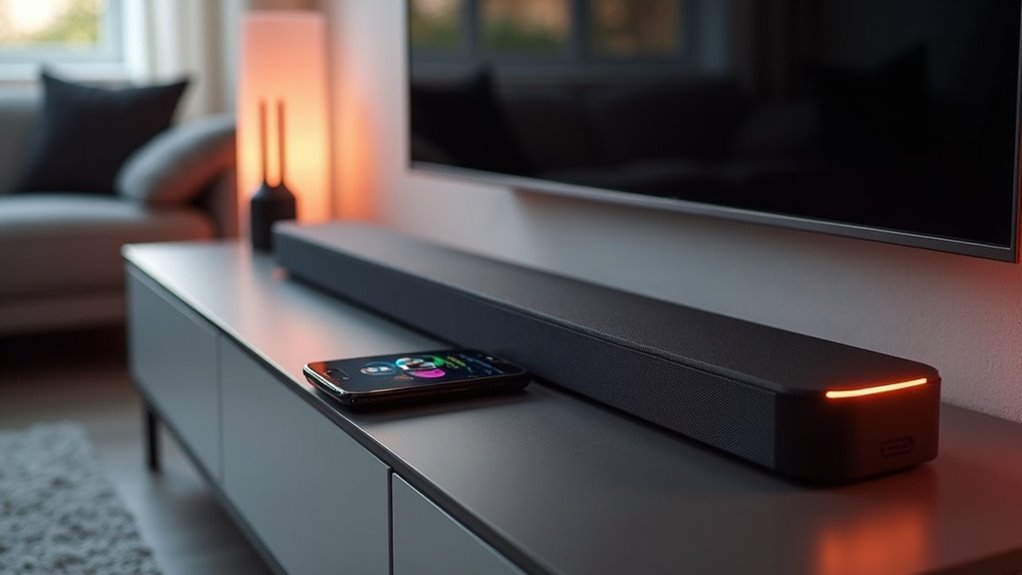
To change your soundbar’s Wi-Fi network, first ensure that it is compatible with the new network and that you have a stable internet connection. Download the Sound Bar Controller App on your mobile device and connect it to your router. Next, reset the soundbar’s network settings. Open the app and select your desired Wi-Fi network, entering the correct credentials. If you encounter any issues, troubleshooting tips are available to assist you, and you can also explore further information on optimizing your soundbar setup.
Key Takeaways
- Verify your soundbar’s compatibility with the new Wi-Fi network before proceeding with the change.
- Download and install the Sound Bar Controller App on your mobile device for seamless setup.
- Reset the soundbar’s network settings according to the manufacturer’s instructions to ensure a fresh start.
- Within the app, select the new Wi-Fi network and enter the correct credentials for connection.
- If you encounter connection issues, make sure the soundbar is powered on and positioned within the router’s range for optimal performance.
Importance of Connecting to the Right Wi-Fi Network
When you connect your soundbar to the right Wi-Fi network, you not only secure peak audio streaming performance but also gain access to a variety of online features tailored for your soundbar experience.
A strong, stable Wi-Fi connection minimizes buffering, thereby enhancing your music playback and streaming capabilities. If you have multiple soundbars or audio devices from the same brand, they must all be on the same network for synchronized audio playback, creating a cohesive sound experience throughout your space.
Additionally, dedicated apps allow you to control your soundbar’s settings in real-time, but these functionalities rely on a proper Wi-Fi connection. If you encounter issues, consider resetting your network settings to ensure your soundbar remains functional and connected to the features you love.
Preparing for the Network Change
Before changing your soundbar’s Wi-Fi network, verify that your soundbar is compatible with the new network.
Ensure you have a stable internet connection to avoid disruptions during the setup process.
Finally, install any required applications on your mobile device that are specific to your soundbar brand to streamline the setup.
Verify Device Compatibility
To successfully change your soundbar’s Wi-Fi network, it’s crucial to verify that your soundbar supports wireless connectivity and is compatible with the new network.
Here’s what to check:
- Confirm your soundbar model supports wireless connectivity.
- Review the manufacturer’s site for wireless standards (e.g., Wi-Fi 5, Wi-Fi 6).
- Verify your soundbar has the latest firmware for improved compatibility.
- Check that your mobile device is compatible with the soundbar’s app.
- Look for user forums for insights on compatibility issues with your specific soundbar model.
Ensure Stable Internet Connection
As you prepare to change your soundbar’s Wi-Fi network, ensuring a stable internet connection is essential for a smooth setup process.
First, connect your mobile device to a reliable home router with a strong internet connection.
Make sure your soundbar is powered on and ready for network configuration, as it must be operational to connect to the new Wi-Fi.
Keep the soundbar within range of the router to prevent connectivity issues.
Additionally, disconnect other devices from the soundbar’s Wi-Fi network to avoid interference, and have your Wi-Fi network credentials, including the network name and password, ready for input.
This will help you enjoy seamless audio experiences without disruption.
Install Required Applications
Installing the necessary applications is a crucial step in changing your soundbar’s Wi-Fi network. Start by downloading the Sound Bar Controller app from the App Store or Google Play. Ensure your mobile device is connected to your home router for a stable internet connection.
Here’s what you need to do:
- Power on your soundbar.
- Confirm it’s ready for network connection.
- Open the Sound Bar Controller app.
- Follow the on-screen instructions to configure network settings.
- Be prepared for a firmware update to enhance performance.
With these steps, you’ll be set for a smooth transition to your new network.
Installing the Sound Bar Controller App
| Step | Action |
|---|---|
| 1 | Download the Sound Bar Controller App |
| 2 | Connect your device to Wi-Fi |
| 3 | Follow the setup instructions for the app |
| 4 | Ensure your soundbar remains powered on |
Steps to Change the Wi-Fi Network
Changing the Wi-Fi network on your soundbar is a straightforward process, especially after you’ve set up the Sound Bar Controller App.
Follow these steps to connect to a new network using the app:
- Reset the network settings according to your specific soundbar model’s instructions.
- Open the Sound Bar Controller App on your mobile device.
- Ensure your device is connected to the desired Wi-Fi network.
- Select the new Wi-Fi network from the available options in the app.
- Enter the correct network credentials when prompted.
If the connection fails, repeat the setup steps and check that all devices are powered on and within range.
If you encounter connection issues, revisit the setup and ensure all devices are powered and within range.
For optimal performance and connectivity, make sure your soundbar’s firmware is updated as well.
Confirming the Connection
Once you’ve attempted to connect your soundbar to the new Wi-Fi network, it’s essential to confirm the connection for seamless operation.
Start by checking the soundbar app for a confirmation message indicating a successful connection. Ensure your soundbar is powered on, and look for the * indicator, which shows an active network connection.
To further verify, play audio through the soundbar and check if it streams correctly from the new network. If the soundbar doesn’t appear in the app or playback fails, reboot the soundbar and repeat the connection process, making sure your mobile device is on the same network as the soundbar.
Checking for Firmware Updates
After confirming your soundbar is successfully connected to the new Wi-Fi network, it’s a good idea to check for any available firmware updates. Doing this ensures that your soundbar operates at peak performance and benefits from the latest features.
Here’s how to check:
- Open the settings menu in the associated app.
- Look for “Firmware Update” or “Software Update.”
- Ensure your soundbar remains powered on during the process.
- Accept any prompts to install available updates.
- Regularly check for firmware updates to enhance your listening experience.
Staying updated improves functionality and fixes bugs, allowing your soundbar to deliver the best audio quality possible.
Troubleshooting Connection Issues
When your soundbar struggles to connect to the desired Wi-Fi network, it’s essential to troubleshoot the issue effectively.
First, ensure your soundbar is powered on and within range of your router or Wi-Fi. Use the manufacturer’s app to check if the soundbar is visible; if not, a factory reset might be necessary to clear existing configurations.
Additionally, confirm that your mobile device is connected to the same Wi-Fi network you want the soundbar to join during setup.
If problems persist, consult the manufacturer’s troubleshooting guide specifically for soundbars or reach out to customer support for further assistance.







