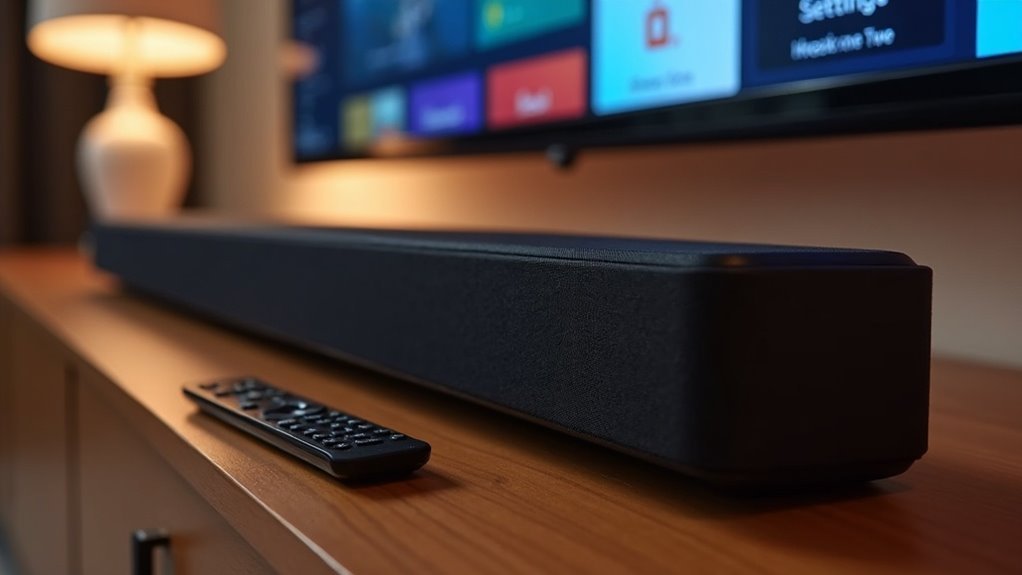
To change your soundbar’s standby settings, access the settings menu using your remote control or soundbar interface. Look for the Auto Power Off option and adjust the timer to your preferred inactivity period or disable it entirely. Make sure to save your changes to avoid reverting to default settings. If you’re experiencing persistent issues with your soundbar, you might discover additional solutions to manage standby behavior effectively.
Key Takeaways
- Access the soundbar settings menu using the remote or the device interface to locate the Auto Power Off option.
- If your soundbar supports HDMI (ARC), you can customize the standby timer settings through its app.
- Select your preferred inactivity period or opt to disable the standby feature entirely in the settings.
- Remember to save your changes to ensure the standby settings remain as you configured them, rather than reverting to the default.
- It’s also a good idea to regularly check for firmware updates, as these may affect standby settings and overall functionality of your soundbar.
Understanding Standby Mode Features
When you understand the features of standby mode, you can better manage your soundbar’s performance and energy efficiency.
Standby mode conserves energy by automatically powering off your soundbar after 15 to 20 minutes of inactivity. You can easily reactivate it by pressing the power button, ensuring quick access to sound.
This auto power-off feature not only reduces unnecessary power consumption but also enhances your soundbar’s longevity by preventing overheating.
If your soundbar supports HDMI (ARC), it may allow for customizable standby timer settings through its app, helping you tailor the experience to your preferences while avoiding potential issues.
How to Reactivate Your Soundbar
To reactivate your soundbar, simply press the power button on the device or the remote control.
If the soundbar doesn’t respond, check the input source and ensure it’s correctly selected, as a lack of signal can lead to issues.
For persistent problems, try switching between input sources to restore sound.
If you continue to experience difficulties, feel free to reach out to TCL Support for assistance.
Power Button Reactivation
If your soundbar enters standby mode due to inactivity or a power disruption, reactivating it is a simple task. Just press the power button on the soundbar or the remote control. The red light indicator is helpful; if it’s blinking, your soundbar is ready to be reactivated. This straightforward process doesn’t require additional steps, and once reactivated, your soundbar will automatically return to its previous input source for seamless operation.
| Action | Indicator | Result |
|---|---|---|
| Press Power Button | Blinking Red | Soundbar reactivates |
| Check for Input Source | Stable Light | Resumes previous source |
| Verify Remote Function | Yes/No | Remote functionality |
| Standby Mode Duration | Timer | Time in standby |
| Reactivation Confirmation | Audible Sound | Soundbar operational |
Troubleshooting Power Issues
Power issues can sometimes disrupt your soundbar’s performance, causing it to enter standby mode unexpectedly.
To reactivate your soundbar, follow these steps:
- Press the power button to wake it from standby mode.
- Ensure the red light isn’t blinking, which would indicate it’s still in standby mode.
- If the soundbar remains inactive for 15 minutes, it will automatically power off, requiring reactivation.
After reactivation, check for audio issues; make sure the orange/white optical light is solid.
If sound issues persist, try switching your HDMI (ARC) input sources to troubleshoot further.
Soundbar Signal Check
Reactivating your soundbar after it enters standby mode is a straightforward process.
If your soundbar has been inactive for a period of time, simply press the power button on the remote or the unit itself to bring it back online.
Look for a blinking red light, which indicates it’s in standby mode.
If your soundbar went into standby due to a power surge, the same method will restore it.
If it remains unresponsive, try increasing the volume or switching input sources.
For peak performance, make sure your soundbar is connected via HDMI (ARC) and adjust the standby settings to suit your preferences.
Troubleshooting Common Sound Issues
When you encounter sound issues with your soundbar, begin by checking the power indicators to ensure everything is functioning properly.
Next, adjust the volume levels and switch between different input sources to see if that resolves the problem.
If these initial steps don’t work, further troubleshooting may be necessary to restore audio to your soundbar.
Check Power Indicators
To troubleshoot common sound issues with your soundbar, start by checking the power indicators. This ensures you’re on the right track every time.
- Look for a blinking red light; this could indicate standby mode or a power issue.
- Confirm that the orange/white optical light is solid, which signifies a proper input signal.
- If the soundbar is unresponsive, try increasing the volume.
- Switch between input sources to restore sound, especially if the soundbar is stuck on the wrong one.
- Reactivate the soundbar by pressing the power button if it’s in standby mode due to inactivity or power disruptions.
Additionally, make sure to check your HDMI (ARC) connections as well.
Adjust Volume Levels
Adjusting volume levels is essential for optimizing your soundbar’s performance and ensuring an enjoyable audio experience. To troubleshoot common sound issues with your soundbar, follow these steps:
| Indicator | Action |
|---|---|
| Red light blinking | Address potential problems |
| Orange/white light not solid | Check the input source connection |
| Soundbar unresponsive | Increase the volume to restore audio output |
| Input source issues | Switch to another source, then return |
| Persistent issues | Consult the soundbar manufacturer’s support team for assistance |
Switch Input Sources
Switching input sources can often resolve sound issues with your soundbar, especially if it’s unresponsive or producing no sound.
Here are key steps to troubleshoot effectively:
- Verify that the red light on the soundbar blinks, indicating standby mode; reactivate it if needed.
- Check the optical light; a solid orange or white confirms a proper connection.
- Increase the volume; sometimes, it’s just too low.
- Switch to a different input source to see if sound returns.
- Return to the original input source if issues persist, as this can restore audio functionality.
Following these steps can help you identify and fix sound problems quickly with your soundbar.
Adjusting Auto Power Off Settings
When you’re looking to customize your soundbar’s Auto Power Off settings, the process is straightforward and may vary depending on your specific model.
To begin, access the settings menu using the remote control or the soundbar’s interface. Within this menu, locate the Auto Power Off option, which typically defaults to a specific inactivity period ranging from 15 to 120 minutes.
From there, you can select your preferred time interval or choose to disable the feature altogether for uninterrupted listening.
Don’t forget to save any changes you make, as some models may revert to default settings if not confirmed.
For more detailed instructions tailored to your soundbar, be sure to consult the user manual provided with your device.
Disabling Auto Standby Function
After you’ve customized your Auto Power Off settings, you may want to consider disabling the Auto Standby function to create a more personalized listening experience with your soundbar.
To do this, follow these steps:
- Access the settings menu on your soundbar or the corresponding app.
- Navigate to the System Settings option.
- Locate the Auto Standby feature in the menu.
- Select the Auto Standby option and choose “Off.”
- Refer to your user manual for model-specific instructions.
Disabling this feature allows for uninterrupted sound, enhancing your enjoyment during long viewing or listening sessions.
Adjust the settings according to your preferences for an ideal soundbar experience.
Using Remote Controls for Standby Management
To effectively manage your soundbar’s standby settings, using the remote control can streamline the process.
First, consult your soundbar’s user manual to find specific commands for accessing power settings. Many soundbars allow you to disable auto-standby by pressing and holding a designated button for about five seconds.
Consult your soundbar’s user manual for commands to access power settings and disable auto-standby easily.
If available, navigate to the settings menu to adjust the time interval before it enters standby mode. For programmable remotes, consider setting up a macro that periodically sends signals to prevent standby.
Always verify that your remote is properly paired with the soundbar, as a malfunctioning remote won’t effectively change the standby settings.
Exploring DIY Solutions to Prevent Standby
While many soundbars come with built-in auto-standby features, you can implement DIY solutions to keep your soundbar awake without constant manual input. Consider these methods:
- Use an IR transmitter to send volume up commands periodically to your soundbar.
- Create a simple DIY circuit with a 555 timer for automated IR signal transmission to maintain active status.
- Modify a universal remote to trigger volume up commands every 10 minutes specifically for your soundbar.
- Program an ATtiny microcontroller to periodically send IR signals to your soundbar.
- Explore continuous audio signals or firmware modifications based on community discussions focused on soundbars.
These solutions can effectively prevent unwanted standby and enhance your soundbar experience.
Contacting Support for Further Assistance
If you’ve tried all possible adjustments to your soundbar’s standby settings but are still experiencing issues, reaching out to the TCL Support Team can provide the assistance you need. Make sure to have your soundbar model and serial number ready to streamline the support process. You can also connect with them through social media for additional help and to engage with the community. For inquiries about warranties or product registration, customer support is your best resource. Don’t forget to visit the official TCL website for user manuals and troubleshooting guides specific to soundbars.
| Support Type | Contact Method |
|---|---|
| Technical Assistance | Phone, Chat, Email |
| Warranty Inquiry | Phone, Email |
| Product Registration | Online Form |
| Community Support | Social Media |
| User Manuals | Official Website |







