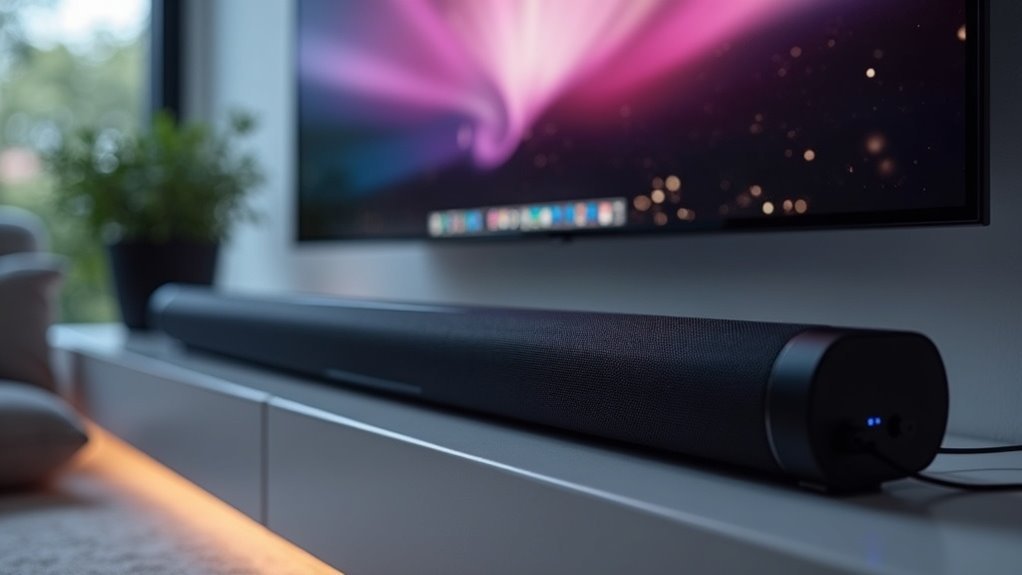
Yes, a soundbar with HDMI CEC can support both power and volume control together. This feature allows you to use a single remote to manage your soundbar and TV, simplifying your audio experience. When HDMI CEC is enabled, turning on your TV will automatically power up your soundbar, and volume adjustments will sync seamlessly. However, compatibility issues may arise, and fine-tuning settings might be necessary for peak performance. Explore more to maximize your soundbar’s capabilities!
Key Takeaways
- Many soundbars support HDMI CEC, allowing users to control power and volume with a single remote.
- With HDMI CEC, you can power on/off both your TV and soundbar simultaneously.
- When using your TV remote for volume adjustments, these changes can automatically sync with the soundbar.
- It’s important to note that compatibility with HDMI CEC can vary between different soundbar and TV brands, so checking for support is essential.
- To achieve optimal performance, ensure that HDMI CEC is activated on both the soundbar and the TV during setup.
Understanding HDMI CEC Functionality
When you’re looking to enhance your home entertainment system with a soundbar, understanding HDMI CEC (Consumer Electronics Control) functionality is essential.
HDMI CEC allows your soundbar and other connected devices to control each other’s functions, including power and volume, using a single remote. With this feature enabled, turning on your TV can automatically power up your soundbar, greatly improving convenience and sound quality.
You can manage volume control directly through your TV remote, eliminating the need for multiple remotes cluttering your space. While manufacturers have different names for HDMI CEC—such as AnyNet+ for Samsung and BraviaSync for Sony—the core functionality remains consistent, as long as all devices support it.
Setting Up Your Soundbar for HDMI CEC
Enabling HDMI CEC on your soundbar can greatly enhance your home entertainment experience.
First, verify that both your soundbar and TV support HDMI CEC and are connected via HDMI cables to the ARC ports.
Next, activate HDMI CEC on your TV; you may find it under different names like AnyNet+, Simplink, or BraviaSync.
Then, set the TV’s sound output to HDMI to allow audio to pass through to the soundbar and enable volume control through the TV remote.
Finally, check your soundbar settings to ensure HDMI CEC is activated for seamless power and volume adjustments, making your soundbar setup even more user-friendly.
Benefits of Using HDMI CEC With Your Soundbar
One major benefit of using HDMI CEC with your soundbar is the ability to control both your TV and soundbar with a single remote. This greatly enhances your soundbar experience by reducing clutter and streamlining operation.
With HDMI CEC enabled, a single command can power both devices on or off simultaneously, which adds to the convenience of your setup. Additionally, volume adjustments made on the TV remote automatically sync with the soundbar, ensuring cohesive audio control.
Many soundbars are designed to fully utilize HDMI CEC, preventing input switching issues and creating a more seamless entertainment experience. Enjoy the simplicity and efficiency of HDMI CEC with your soundbar in your home theater setup.
Common Issues With HDMI CEC Integration
While HDMI CEC provides numerous benefits for soundbars, it can also introduce various integration challenges. Users may face common issues such as:
HDMI CEC enhances soundbar functionality but can lead to frustrating integration challenges for users.
- Inconsistent volume control, often necessitating the use of the soundbar’s remote
- Unintentional power-ons or input switching, which can lead to confusion during use
- Limited compatibility among devices, hindering seamless functionality
- Settings that may need fine-tuning to optimize performance
These challenges can be frustrating for those seeking a seamless audio experience with their soundbars.
Often, troubleshooting involves relying on separate remotes for specific functions, as not all devices consistently support reliable HDMI CEC integration.
Tips for Optimizing Soundbar Performance With HDMI CEC
To optimize your soundbar’s performance with HDMI CEC, begin by ensuring that both your soundbar and TV are compatible with this feature. Review the specifications, as not all soundbars include HDMI CEC support.
Next, enable HDMI CEC settings on both devices, as these settings are often disabled by default. If your soundbar is unresponsive to the TV remote, try unplugging and re-plugging the HDMI connection to reset the CEC communication.
Lastly, make sure both devices have the latest firmware updates, as these updates can enhance compatibility and functionality, ultimately improving your HDMI CEC experience and optimizing your soundbar’s performance.







