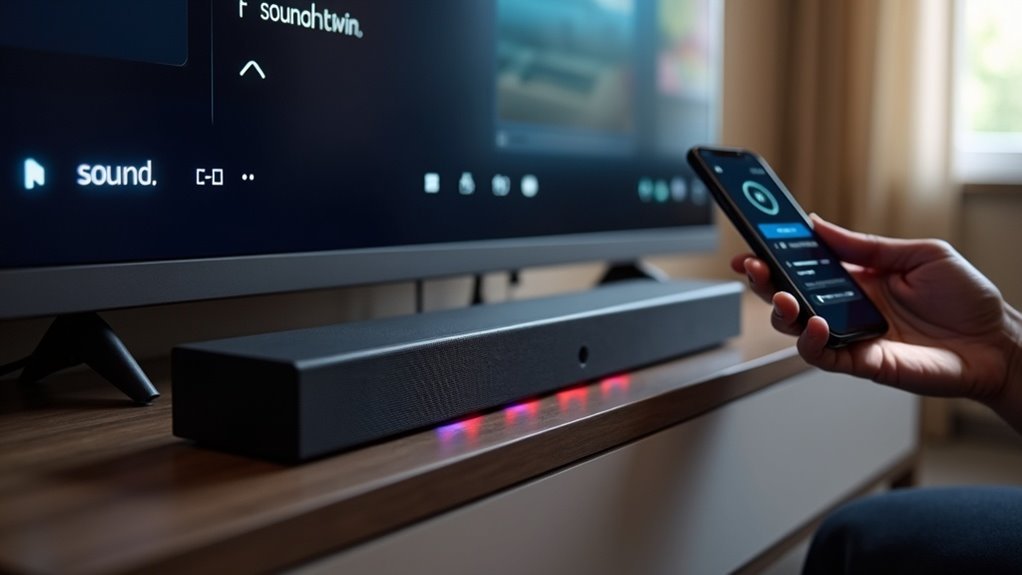
To fix eARC dropouts on your soundbar when using streaming apps, first ensure that the eARC setting is enabled on both your TV and soundbar. Check for any audio format mismatches and adjust settings between HDMI ARC, passthrough, and PCM as needed. Power cycle all devices and ensure your HDMI cables are of high quality and free from damage. Regularly update the firmware for both your soundbar and TV, and test different streaming apps to identify any issues. You’ll find more detailed solutions to optimize your soundbar setup and enhance your audio experience.
Key Takeaways
- Ensure both your TV and soundbar have eARC enabled in their settings for optimal audio transmission.
- Check and adjust the audio output format on your TV to avoid mismatches; try switching between PCM and Bitstream for better compatibility with your soundbar.
- Regularly update the firmware on your soundbar and TV to address any known audio issues that could affect performance.
- Test various streaming apps to identify if specific ones are causing dropouts, and provide feedback to the app developers for potential fixes.
- Use high-quality, eARC-compatible HDMI cables to prevent signal loss or interruptions during playback, ensuring the best audio experience with your soundbar.
Understanding Earc and Its Importance for Soundbars
eARC, or Enhanced Audio Return Channel, is crucial for enhancing your soundbar experience by delivering high-quality audio from your TV.
This HDMI 2.1 feature allows the transmission of uncompressed audio formats such as Dolby Atmos, providing an immersive sound experience. With eARC, you also enjoy automatic lip-sync correction, which eliminates audio delays that can disrupt your enjoyment of movies and shows.
eARC enables uncompressed audio formats like Dolby Atmos, enhancing immersion and ensuring seamless audio-visual sync for an optimal viewing experience.
To take full advantage of eARC, ensure that both your TV and soundbar are compatible with this standard, and connect them using high-quality HDMI cables.
Additionally, keeping your devices updated with the latest firmware is important, as this can resolve potential issues like audio dropouts when using various streaming applications.
Common Causes of Earc Dropouts
When streaming high-resolution audio through your soundbar, you may experience dropouts if there’s a mismatch between the audio format and the soundbar’s supported formats. Common causes of eARC dropouts include:
| Cause | Description | Solution |
|---|---|---|
| Audio Format Mismatch | The streaming app may send an unsupported audio format. | Check your soundbar’s compatibility with audio formats. |
| HDMI Cable Quality | Poor or damaged HDMI cables can lead to signal loss. | Ensure you are using high-speed HDMI cables. |
| Firmware Compatibility | Outdated firmware on your soundbar can cause sync issues. | Verify that your soundbar’s firmware is updated. |
| Incorrect Audio Settings | Using PCM instead of Bitstream can result in dropouts. | Adjust your audio settings to match the optimal configuration for your soundbar. |
Essential Troubleshooting Steps
To resolve eARC dropouts effectively with your soundbar, start by ensuring that the HDMI ARC or eARC setting is enabled on both your TV and soundbar; toggling this setting off and on can refresh the connection and potentially eliminate any communication glitches.
Next, check your audio output settings on the TV, switching between HDMI ARC, passthrough, and PCM for the best configuration that works with your soundbar.
Power cycle all connected devices, including your soundbar, by turning them off for 10 seconds before restarting.
Regularly check for firmware updates for your soundbar, TV, and any streaming devices you use.
Finally, test audio playback across different streaming apps to pinpoint the dropout issue specifically related to your soundbar.
Optimizing Your Audio Settings
Optimizing your audio settings can significantly enhance your soundbar’s performance and reduce eARC dropouts.
First, ensure that the HDMI ARC or eARC setting is enabled on both your TV and soundbar.
Experiment with digital sound output settings such as “Auto,” “Passthrough,” and “PCM” to find the best configuration for your soundbar.
Regularly check for firmware updates on your devices, as these often resolve audio-related issues.
Adjust the audio delay settings in your TV’s menu to achieve synchronized sound and video.
Finally, invest in high-quality HDMI cables that support eARC to ensure robust signal transmission, minimizing the risk of audio dropouts while using streaming apps.
When to Seek Professional Help
If you’ve tried all the basic troubleshooting steps for your soundbar without success, it might be time to consider professional help for your eARC dropout issues.
Technicians can diagnose hardware problems, such as faulty HDMI ports or damaged cables, that may be causing audio dropouts in your soundbar.
If your soundbar is still under warranty, reaching out to the manufacturer can provide you with expert assistance at no additional cost.
Persistent issues across multiple devices may indicate compatibility problems that require professional evaluation.
Ultimately, if troubleshooting fails, a professional can determine if your soundbar needs a replacement or an upgrade to restore optimal performance.







