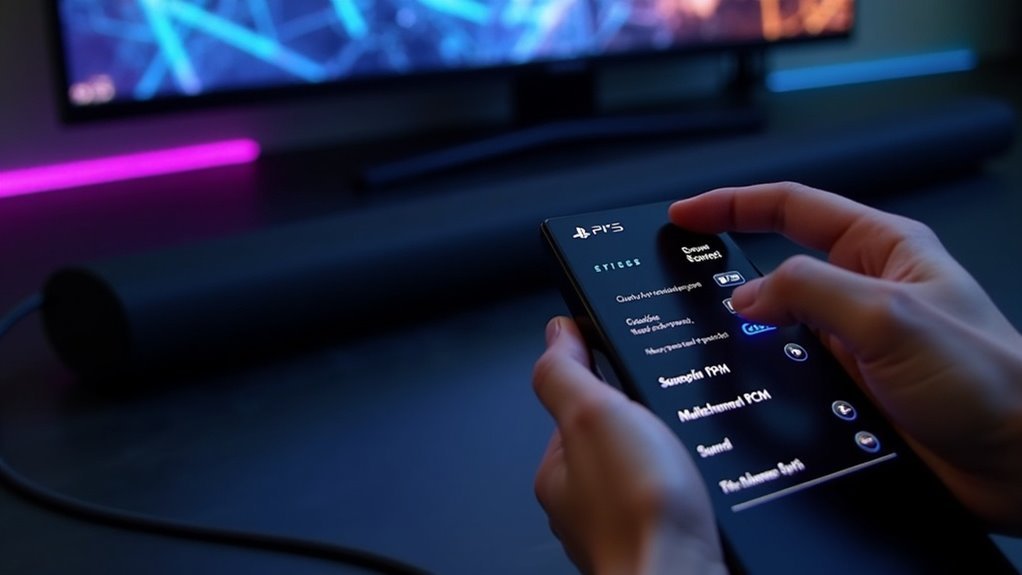
To verify multichannel PCM on your soundbar from your PS5, ensure your console is configured to output Linear PCM. Navigate to the PS5 audio settings, select HDMI Device, and then choose AV amplifier. For optimal audio quality, connect your soundbar via HDMI eARC. Play compatible games and observe your soundbar’s display for indications of active audio formats. If you encounter any issues, troubleshooting steps can help fine-tune your setup for an enhanced audio experience. Explore further for the best performance from your soundbar.
Key Takeaways
- Ensure your soundbar’s audio settings are configured to support Linear PCM by adjusting the Sound > Audio Output settings on your PS5 for optimal multichannel audio performance.
- Use HDMI eARC connections to facilitate the transmission of high-quality audio signals from your PS5 to the soundbar, enhancing your listening experience.
- Play games that are known for their multichannel PCM support and observe the soundbar’s display for audio format indicators to confirm proper audio output.
- Verify that your TV’s Digital Audio Out is set to PassThrough and that eARC is enabled to ensure optimal audio transmission to the soundbar.
- Regularly check for firmware updates on both your PS5 and soundbar to maintain compatibility and improve performance.
Understanding Multichannel PCM and Its Benefits
When exploring the world of soundbars, understanding multichannel PCM (Pulse Code Modulation) is crucial for enhancing your audio experience, whether you’re gaming or watching movies.
This technology allows for high-quality audio output by transmitting multiple sound channels simultaneously, creating a more immersive sound environment.
Multichannel PCM enables high-quality audio by delivering multiple sound channels at once, enriching your immersive listening experience.
By configuring your PS5 settings to Linear PCM, you can enjoy seamless multichannel audio without the need for complex decoding, which reduces latency and improves overall sound quality.
Many modern soundbars, such as the Sonos Arc, are designed to support this format.
To fully leverage the surround sound capabilities of multichannel PCM, make sure to verify that your soundbar settings and TV configurations are optimized for HDMI passthrough.
Setting Up Your PS5 for Linear PCM Output
To set up your PS5 for Linear PCM output through your soundbar, start by accessing your console’s settings by navigating to the “Sound” section. From there, select “Audio Output” and choose “HDMI Device” as your output device. Ensure the HDMI Device Type is set to “AV amplifier” to guarantee proper audio channel support for your soundbar. In the Audio Format (Priority) settings, select “Linear PCM” to optimize your gaming experience. It’s important to verify that your soundbar, such as Sonos, supports multichannel PCM. Lastly, adjust your TV settings by enabling the eARC setting and setting Digital Audio Out to “Auto” to achieve peak audio performance.
| Setting | Value | Notes |
|---|---|---|
| Device Type | AV amplifier | Required for PCM support |
| Audio Format (Priority) | Linear PCM | Prioritize for gaming |
| Digital Audio | Auto | Confirms LPCM passthrough |
| TV eARC | Enabled | Necessary for LPCM audio |
Testing Multichannel Audio With Compatible Games
Testing multichannel audio with compatible games is essential for ensuring your soundbar delivers the full audio experience intended by game developers.
Begin by confirming that your PS5 audio settings are configured for Linear PCM, and utilize HDMI eARC connections for optimal signal transmission.
Choose games known for their multichannel PCM support, as many titles may default to stereo PCM output instead.
While playing, keep an eye on your soundbar display for indications of the active audio format.
For the best audio performance, regularly perform firmware updates on both your PS5 and soundbar to maintain compatibility with the latest audio technologies, as highlighted in the Sonos Users Group.
Troubleshooting Common PCM Issues
If you’re encountering issues with PCM audio on your soundbar, it’s crucial to systematically identify and resolve potential problems.
Start by checking your soundbar’s audio settings to ensure it’s configured for multichannel PCM. Confirm that your TV’s Digital Audio Out is set to PassThrough and eARC is enabled for optimal audio transmission.
If you still face issues, reboot all devices—soundbar, TV, and any connected gaming consoles or media players—to refresh the HDMI handshake.
Verify your soundbar firmware is current, as updates can enhance compatibility and performance.
Finally, if PCM stereo persists, consider switching the audio output settings on your connected device to directly output to the soundbar instead of an AV amplifier and test again.
Optimizing Your Soundbar Settings for Best Performance
When optimizing your soundbar settings for the best performance, it’s essential to ensure that all components in your audio setup work seamlessly together.
Start by selecting “Audio Format (Priority)” in your PS5 settings to output Linear PCM for peak multichannel audio.
Connect your soundbar using an HDMI eARC cable to maximize compatibility and ensure high-quality transmission.
Adjust your TV’s digital audio output to “Auto” or “PassThrough” for unaltered multichannel signals.
Finally, test various games that support multichannel PCM to confirm your soundbar delivers the immersive gaming experience you seek, allowing you to enhance its performance effectively.







