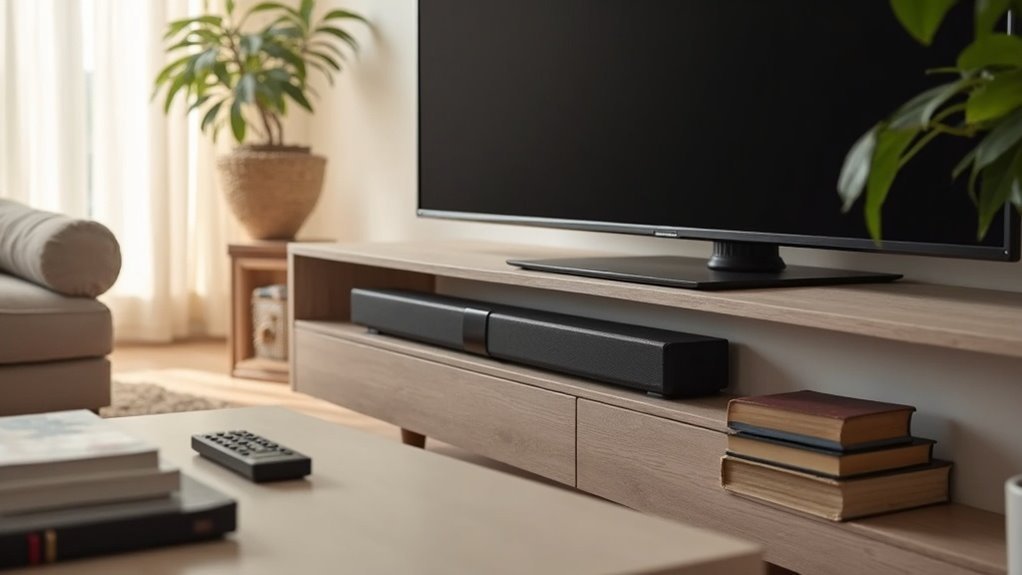
Many soundbars, such as the Samsung HW-Q990F, Sonos Beam (Gen 2), and LG SN11RG, offer support for TV remote learning. This convenient feature enables you to control the soundbar using your TV remote, creating a more streamlined audio experience. These soundbars are designed to integrate seamlessly with various TV brands, making audio management simpler. Be sure to consult each model’s user manual for specific instructions on activating the learning mode. If you’re interested in exploring more options and features, there’s plenty of information available to enhance your soundbar experience.
Key Takeaways
- The Samsung HW-Q990F is designed for seamless integration with various TV remotes, supporting remote learning features to enhance your sound experience.
- The Sonos Beam (Gen 2) offers smart features and is compatible with most TV remote learning capabilities, making it a versatile choice for audio enthusiasts.
- The LG SN11RG soundbar is compatible with multiple TV brands and supports remote learning for easy control, ensuring a hassle-free setup.
- Hisense and TCL soundbars provide user-friendly experiences and often include TV remote learning functionality, allowing for convenient operation.
- Always refer to the user manual for specific learning mode activation and compatibility information for your soundbar model to maximize its potential.
Setting the Audio Output on the TV and Enabling TV Control on the Soundbar
To enjoy ideal sound quality with your soundbar, start by setting the audio output on your TV to the soundbar.
Navigate to the Settings menu, select Sound, and choose your soundbar from the Sound Output list.
To enable TV control, activate features like Anynet+ for HDMI ARC connections or Auto Power Link for optical connections.
Connect the soundbar’s HDMI OUT to the TV’s HDMI (ARC) port, and set the soundbar to D.IN mode for automatic control.
Ensure the soundbar is powered on and properly connected.
If you encounter any remote control issues, check your TV remote’s functionality and replace its batteries if necessary.
Enjoy the enhanced audio experience that your soundbar provides!
What to Do if Connecting With a Digital Optical Cable
When connecting your soundbar to the TV using a digital optical cable, begin by ensuring that both ends of the cable are free of any plastic protector caps before inserting them into the correct ports.
Connect one end to the optical input on your soundbar and the other to the optical output on your TV.
Then, set your soundbar to D.IN mode, which can be done using the TV remote or the manual controls on the soundbar.
For added convenience, activate the Auto Power Link feature, allowing your soundbar to power on and off automatically with your TV.
If you encounter any sound issues, double-check the TV’s audio settings to ensure that it’s set to output through the optical connection.
For further assistance, consult the User Manual specific to your soundbar model.
What to Do if Connecting With HDMI and Using ARC
Connecting your soundbar via HDMI with ARC (Audio Return Channel) offers a streamlined audio experience, making it easier to use your TV and soundbar together.
To set this up, connect an HDMI cable from the soundbar’s HDMI OUT port to your TV’s HDMI (ARC) port.
Connect an HDMI cable from your soundbar’s HDMI OUT to your TV’s HDMI (ARC) port for optimal audio setup.
Enable the TV’s Anynet+ feature for seamless control of your soundbar.
After connecting, switch the soundbar to D.IN mode, and it will automatically transition to TV ARC mode in about 2 seconds.
Finally, adjust your TV’s audio output settings to direct sound through the soundbar for optimal performance.
Enjoy an enhanced audio experience tailored for your soundbar setup!
Soundbar Remote Is Not Working
If your soundbar remote isn’t functioning properly, it can significantly affect your audio enjoyment. Here are some steps to help you troubleshoot the issue:
- Ensure that the soundbar is powered on and properly connected to your TV.
- Check the batteries in the remote; replacing them might resolve the issue.
- If your soundbar supports TV remote learning, make sure that your TV’s remote settings are configured correctly.
- If problems continue, refer to the user manual for troubleshooting guidance or consider resetting the remote settings if possible.
Should you still encounter difficulties, visit the manufacturer’s website for further assistance or look for a replacement remote that’s compatible with your specific soundbar model.
Need a Replacement Remote for the Soundbar
Finding a replacement remote for your soundbar can be straightforward, especially if you know where to look.
Start by visiting the manufacturer’s website or an authorized parts distributor, like Samsung Parts, and enter your soundbar model for compatibility. Availability may vary based on your soundbar’s brand and model, so keep your model number handy.
Some brands offer universal remotes that can control multiple devices, providing a single-remote solution for all your audio needs.
If you encounter issues with a replacement remote, don’t hesitate to contact customer support for troubleshooting or alternative control options.
It’s essential to ensure you maintain full functionality of your soundbar for the best audio experience.
Popular Soundbars With Remote Learning Capabilities
Many soundbars today enhance user convenience by featuring remote learning capabilities, allowing you to control them with your existing TV remote.
Here are some popular options:
- Samsung HW-Q990F: Offers seamless integration with various TVs.
- Sonos Beam (Gen 2): Known for its smart features and easy setup.
- LG SN11RG: Compatible with multiple TV brands for simplified operation.
- Hisense and TCL models: Provide user-friendly experiences by reducing remote clutter.
These soundbars typically support HDMI ARC, letting you control volume and power, ensuring a streamlined audio setup for all your entertainment needs.
Benefits of Using a TV Remote for Soundbar Control
Using your TV remote to control a soundbar streamlines your audio setup by reducing the number of remotes needed for operation.
This integration not only minimizes clutter but also enhances convenience, allowing you to adjust sound levels and power on/off without switching devices.
With customizable buttons, you can tailor the soundbar’s functionality to fit your preferences, making the overall media experience even easier and more enjoyable.
Simplified Device Operation
While managing multiple remotes can be frustrating, soundbars that support TV remote learning offer a streamlined solution by allowing you to control volume and power directly through your TV remote. This simplifies your viewing experience and enhances convenience.
Here are some key benefits:
- Control soundbar volume and power without switching remotes
- Access enhanced audio settings easily
- Seamless integration with HDMI ARC-enabled TVs
- Simplified operation reduces confusion and improves efficiency
With this feature, you can enjoy your entertainment without the hassle of juggling multiple devices, making your soundbar setup more user-friendly.
Always check compatibility with specific soundbar models.
Reduced Remote Clutter
Eliminating the need for multiple remotes not only reduces clutter but also enhances your overall soundbar experience.
By using your TV remote to control compatible soundbars from brands like Samsung and Sonos, you streamline your audio setup. Features like HDMI ARC enable the soundbar to respond automatically to your TV remote, allowing easy adjustments to volume and settings without switching devices.
This single-remote operation simplifies control, making it more accessible for everyone, including those who find managing multiple devices challenging.
Ultimately, you can enjoy a cleaner, more organized space while enhancing your audio enjoyment.
Enhanced User Convenience
When you control your soundbar with your TV remote, you significantly enhance convenience and streamline your audio experience.
This integration offers several advantages:
- Single Remote Use: Effortlessly manage volume and mute settings without the hassle of juggling multiple remotes.
- Compatibility: Numerous soundbars equipped with HDMI ARC and Bluetooth can work seamlessly with your TV remote.
- Customizable Controls: Certain soundbars enable you to program buttons for specific audio settings tailored to your preferences.
- Reduced Clutter: Simplify your entertainment setup by minimizing the number of devices you need to manage.
Troubleshooting Common Issues With TV Remote Control
To troubleshoot common issues with your soundbar remote control, first ensure that the soundbar is powered on and properly connected to the TV, as this is essential for seamless remote functionality.
Next, check the batteries in the soundbar remote; replacing them can often resolve unresponsive commands.
Check the batteries in your soundbar remote; replacing them can often fix unresponsive issues.
If the soundbar still doesn’t respond, try resetting the remote settings to address any communication issues.
Consult your user manual for model-specific troubleshooting steps, as different soundbars may have unique requirements.
Lastly, ensure that the learning mode is activated on soundbars that support TV remote learning, which allows for proper recognition of commands from your TV remote.







