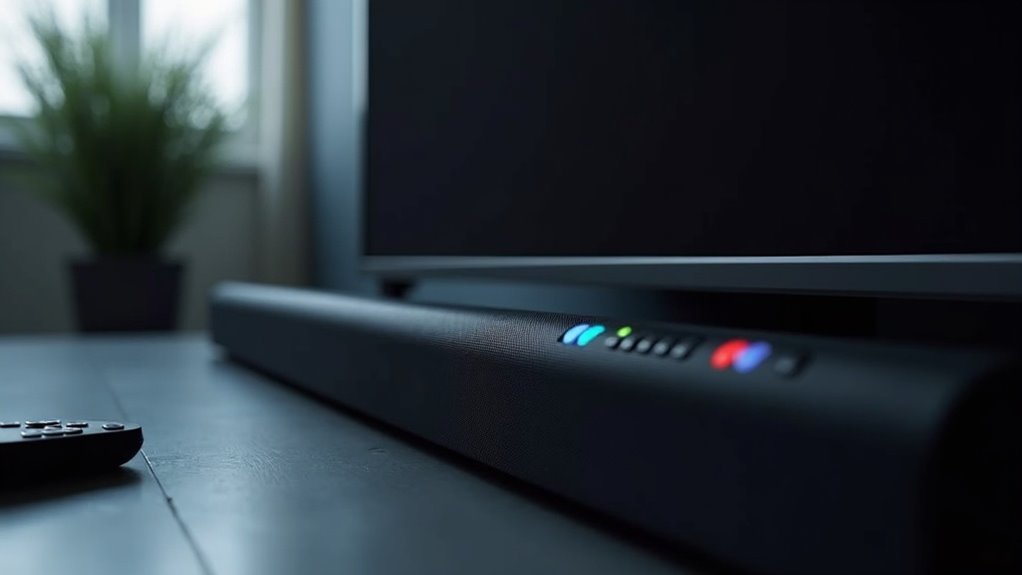
To check your soundbar’s eARC status, ensure it is securely connected to your TV’s eARC port using a compatible HDMI cable. Navigate to your TV’s audio settings to enable HDMI eARC Mode and activate Anynet+ (HDMI-CEC). Make sure the soundbar is set to the eARC input, and check its indicators for any status notifications. Testing audio with high-quality formats such as Dolby Atmos can further confirm functionality. There are additional steps to optimize your soundbar setup effectively.
Key Takeaways
- Ensure that your soundbar is connected to the HDMI eARC port on both the TV and soundbar for optimal performance.
- Look for LED indicators or on-screen messages on the soundbar that indicate its eARC status.
- Access the soundbar settings to confirm it is set to the eARC/ARC input mode.
- Test the eARC functionality by using high-quality audio formats like Dolby Atmos.
- Consult the soundbar user manual for specific troubleshooting steps and compatibility information regarding eARC.
Ensure Proper Connections
To ensure optimal connections for your soundbar, begin by confirming that it’s linked to the eARC port on your TV with an eARC-compatible HDMI cable.
It’s crucial to check that all devices within your audio setup support eARC, as this is vital for achieving the best audio output and functionality.
Ensuring all devices in your audio setup support eARC is essential for optimal audio performance and functionality.
Ensure that Anynet+ (HDMI-CEC) is enabled in your TV settings to allow seamless communication with the soundbar.
Additionally, make sure HDMI eARC Mode is activated, as it’s often turned off by default.
Lastly, inspect all HDMI connections to ensure they’re secure and undamaged, as loose connections can interfere with eARC performance and diminish your audio experience.
Access TV Audio Settings
After ensuring your soundbar is properly connected, the next step is to access your TV’s audio settings.
Press the Home button on your remote, then navigate to Settings. In the settings menu, select General and find External Device Manager.
Here, you’ll locate the HDMI eARC Mode options. Make sure to enable HDMI eARC Mode, as it’s typically off by default and essential for optimal soundbar functionality.
Additionally, check that Anynet+ (HDMI-CEC) is activated in the same section, facilitating easier control of your soundbar and other connected devices.
For specific instructions, consult your TV’s user manual, as navigation may differ across models.
Verify Earc Functionality
Verifying eARC functionality is essential for ensuring your soundbar delivers optimal audio performance.
Begin by confirming that both your TV and soundbar are eARC-compatible by checking the HDMI port labels. Next, enable HDMI eARC in your TV settings and activate Anynet+ (HDMI-CEC) for seamless communication between devices.
It’s important to use a high-speed HDMI cable, as standard cables won’t support eARC’s higher bandwidth requirements. After connecting the HDMI cable, inspect the soundbar settings to ensure it’s set to the eARC/ARC input.
Finally, test the audio by playing content that features high-quality audio formats, such as Dolby Atmos, to confirm that eARC is functioning properly.
Check Soundbar Indicators
Once you’ve confirmed eARC functionality, the next step involves checking your soundbar’s indicators.
Look for an LED light or on-screen message that signifies eARC status; this varies by model and may be color-coded.
Make sure your soundbar is connected to the HDMI eARC port on both the soundbar and TV for optimal performance.
Some soundbars come with a dedicated button or setting to display the current audio format, which can further confirm eARC functionality.
Regularly monitoring these indicators helps you maintain an understanding of your soundbar’s eARC status and ensures you’re enjoying the best audio experience possible.
Consult User Manual
Consulting your soundbar’s user manual is essential for confirming eARC compatibility and ensuring proper setup.
First, check if your soundbar supports the eARC feature, as not all models do. Look for sections detailing HDMI connections and specific setup instructions to optimize your configuration.
Ensure your soundbar supports eARC by checking the user manual for HDMI connection details and setup instructions.
The manual may highlight special settings that need enabling for enhanced audio performance. Additionally, it often includes troubleshooting steps for common eARC connection issues.
Be sure to follow any diagrams illustrating the correct HDMI port usage for eARC connections, ensuring you maximize your soundbar’s capabilities and achieve the best audio experience possible.







