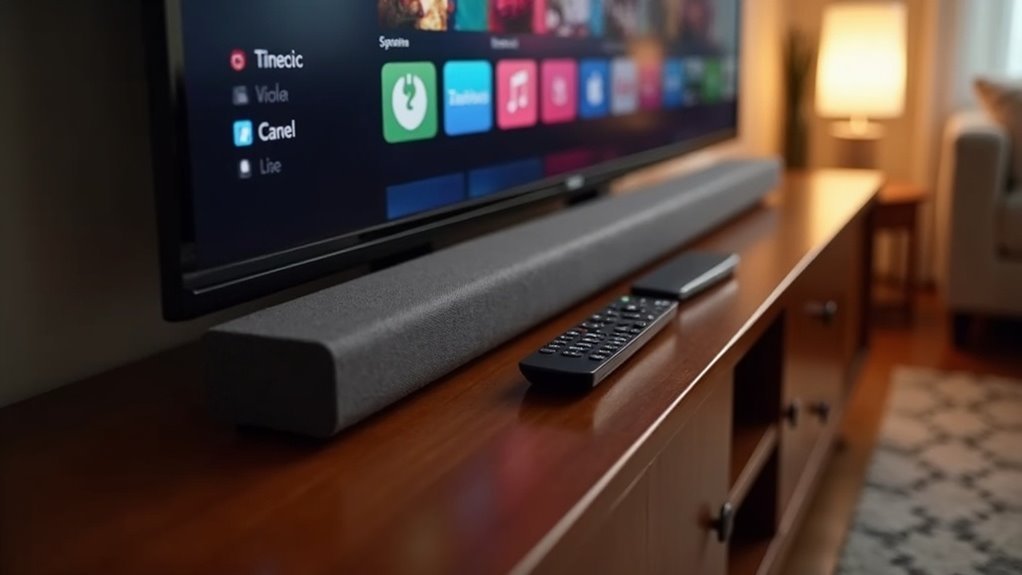
To update your soundbar apps, first, ensure you have a stable Wi-Fi connection. Then, access the settings menu by pressing the “Home” button on your soundbar remote. Navigate to “Apps” to manage any installed applications. It’s advisable to check for software updates manually, even if automatic updates are enabled. Finally, use the SmartThings app to download and install any pending updates for your soundbar. For more detailed guidance, there’s plenty more information available to enhance your soundbar experience.
Key Takeaways
- Ensure your soundbar is connected to a stable Wi-Fi network for seamless app updates.
- Access the settings menu via the remote or soundbar to manage apps and check for updates.
- Use the SmartThings app to view and download any pending app updates for your soundbar.
- Regularly check for software updates manually, even if automatic updates are enabled.
- Visit the manufacturer’s website for specific instructions and support related to your soundbar model.
Ensure Internet Connectivity
To ensure your soundbar updates its apps smoothly, it’s crucial to be connected to a stable Wi-Fi network.
You can utilize the SmartThings app on your phone to verify your soundbar’s internet connection status. If it’s not connected, consider checking your router settings or restarting it to improve connectivity.
Utilize the SmartThings app to check your soundbar’s internet connection and troubleshoot any connectivity issues easily.
Additionally, ensure that your soundbar is within range of the Wi-Fi signal to prevent interruptions during updates. Regularly testing the internet connection through the soundbar’s settings will help maintain consistent performance.
A hassle-free experience when updating those apps is what you want!
Access the Settings Menu
Accessing the Settings Menu on your soundbar is essential for managing and updating apps effectively. To get there, press the “Home” button on your remote or soundbar. Use the arrow keys to navigate to the “Settings” option and select it. Within the Settings Menu, find the “Apps” section to manage installed applications.
| Action | Description |
|---|---|
| Press “Home” | Access the main menu |
| Navigate to “Settings” | Enter the settings menu |
| Select “Apps” | Manage and update applications |
Ensure your soundbar is connected to the internet for app updates.
Check for Software Updates
Regularly checking for software updates is essential for keeping your soundbar running smoothly.
Access the settings menu through the SmartThings app or your soundbar’s remote. While automatic updates may be enabled, it’s wise to manually check for updates periodically to ensure you get the latest features and bug fixes.
When connected to Wi-Fi, your soundbar can receive updates seamlessly without needing a USB drive.
To check the firmware version, press and hold the Sound Control (gear icon) for 6 seconds until it turns off, displaying the current version.
Keeping your soundbar’s software up to date enhances compatibility with streaming apps and improves audio performance.
Download and Install Updates
After checking for software updates, the next step is to download and install any available updates for your soundbar apps. Open the SmartThings app on your device and navigate to your soundbar’s control menu. Tap the three vertical dots to access options, then go to the “Apps” section. Here, you can view pending updates that enhance the functionality of your soundbar. Select the apps you want to update and follow the prompts. Ensure that your soundbar is connected to a stable Wi-Fi network during the update process to avoid interruptions.
| App Name | Version Available | Status |
|---|---|---|
| Music Stream | 2.1 | Update Needed |
| Sound Enhancer | 1.5 | Up to Date |
| News App | 3.0 | Update Needed |
| Podcast App | 1.7 | Up to Date |
| Weather App | 2.2 | Update Needed |
Visit Manufacturer’s Website for Support
When you’re ready to update your soundbar apps, visiting the manufacturer’s website can be incredibly helpful.
Navigate to the support section to find specific instructions tailored for your soundbar model. Look for a dedicated downloads or firmware update page to access the latest app updates.
Additionally, you can utilize online resources like FAQs and user guides to troubleshoot any issues you might encounter. If you prefer community insight, check for forums where users share experiences and tips related to soundbars.
Lastly, don’t hesitate to contact customer support for personalized assistance if you run into difficulties while updating your soundbar apps.







