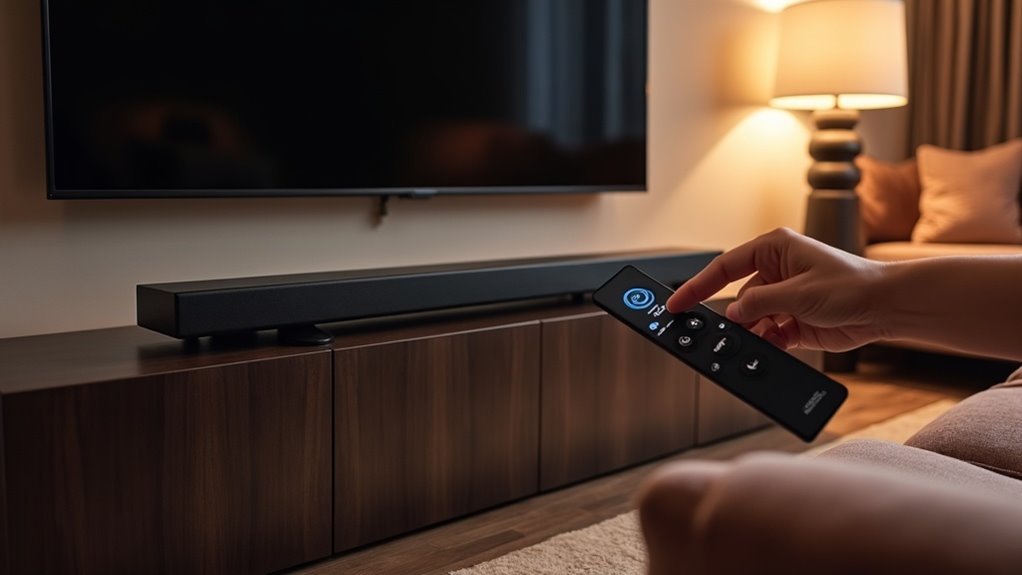
To change sound modes on your soundbar, simply press the “Sound Mode” button on your remote control. This allows you to cycle through modes such as Movie, Music, Night, and Dialogue, optimizing your audio experience. Ensure you point the remote directly at the soundbar for effective communication. If you encounter issues, check your connections or consider using a smart app for added convenience. There’s also a wealth of options to explore for fine-tuning and advanced features to enhance your soundbar setup.
Key Takeaways
- Locate the “Sound Mode” button on your remote to cycle through available audio settings like Movie, Music, Night, and Dialogue modes, enhancing your soundbar experience.
- Ensure you point the remote directly at the soundbar’s front sensor for effective mode changes to enjoy optimal sound quality.
- Use smart apps compatible with your soundbar for remote control over sound modes directly from your mobile device, adding convenience to your audio experience.
- Access the soundbar menu and navigate to Expert Settings for advanced customization and equalizer adjustments to tailor the sound to your preferences.
- Check for firmware updates regularly to ensure your soundbar supports the latest audio features and improvements, keeping your audio experience up to date.
Understanding Sound Modes on Your Soundbar
When you’re setting up your soundbar, it’s essential to understand the various sound modes it offers, as each is tailored to enhance your listening experience based on the type of content.
Movie Mode amplifies bass and dynamic range, ideal for action-packed films.
Music Mode delivers balanced sound, focusing on clarity of instruments and vocals for an immersive musical experience.
Night Mode minimizes bass and restricts dynamics, ensuring clear dialogue at lower volumes, perfect for late-night viewing without disturbing others.
Finally, Dialogue Mode boosts vocal frequencies, enhancing speech clarity in news programs and TV shows, making conversations easier to understand.
Understanding these modes can significantly improve your audio experience and make the most of your soundbar.
Switching Sound Modes Using the Remote
How can you quickly switch sound modes on your soundbar using the remote?
Locate the “Sound Mode” button on your remote. Each press cycles through preset audio settings like Movie, Music, News, and Night Mode. The soundbar confirms mode changes with an LED indicator or sound prompt, ensuring you know the current sound mode.
Locate the Sound Mode button on your remote to effortlessly cycle through audio settings like Movie, Music, and more.
For optimal performance, point the remote directly at the soundbar’s front sensor, and if it’s unresponsive, check the batteries.
Exploring these sound modes can significantly enhance your listening experience, as each mode is designed to optimize audio performance based on the content you’re enjoying.
Utilizing Smart Apps for Sound Mode Control
Ever wondered how smart apps can simplify sound mode control for your soundbar? By integrating with systems like SmartThings, you can switch sound modes directly from your mobile device. However, you might need to modify the `media_player.py` file in the SmartThings API for specific soundbar models to enable this functionality. Some models, like the Samsung HW-Q930B, may lack sound mode details, so checking GitHub for community solutions is advisable. Here’s a quick overview of integration aspects specifically related to soundbars:
| Feature | Description |
|---|---|
| Smart Apps | Control sound modes remotely |
| API Modification | Customization for soundbar models |
| Community Support | Workarounds and troubleshooting |
| Mode Options | Night mode, Bass boost |
Fine-Tuning Sound Settings for Optimal Performance
To achieve ideal sound performance from your soundbar, it’s essential to explore the fine-tuning of its settings.
Start by accessing the Expert Settings through your soundbar’s menu, where you can customize sound settings and balance. Adjust the equalizer to modify low and high sound bands, tailoring immersive audio to your preferences.
If your soundbar has automatic calibration, use this feature for best results based on your environment. Experiment with various sound modes—like Movie, Music, or Night Mode—to enhance your listening experience.
Finally, regularly check for firmware updates to enable new audio features that can improve sound quality.
Troubleshooting Sound Mode Issues
If you’re experiencing issues with changing sound modes on your soundbar, start by checking your connections and settings to ensure everything is properly configured.
A simple restart of both the soundbar and your TV can often resolve minor glitches that interfere with mode changes.
Check Connections and Settings
Properly checking connections and settings is crucial when troubleshooting sound mode issues with your soundbar. Ensure your soundbar connects to the TV via HDMI ARC, optical, or another compatible method for optimal performance. Next, verify that the correct sound output is selected in your TV settings to ensure your soundbar functions as intended. Here’s a quick reference table to assist you:
| Action | Description |
|---|---|
| Check Connections | Ensure the proper connection type is used |
| Verify Output Settings | Match the TV output to the soundbar settings |
| Confirm Sound Mode Support | Ensure the selected mode is supported by the soundbar |
Restart Soundbar and TV
Restarting your soundbar can often resolve sound mode issues, as it refreshes its connections and settings.
To restart your soundbar, power it off and unplug it from the wall for at least 30 seconds. After plugging it back in, turn it on.
Before restarting, verify all connections, such as HDMI or optical cables, are secure.
Once the soundbar is rebooted, check the sound mode settings again to determine if the issue has been resolved.
If problems persist, consider also rebooting your TV to further troubleshoot the audio issue.
Exploring Advanced Features and Customizations
While exploring the advanced features and customizations of your soundbar, you’ll find a variety of options designed to elevate your audio experience.
Switch between different Sound Modes such as Movie or Music, utilize Bass Boost for richer low frequencies, and activate Surround Sound for a more enveloping auditory environment.
Automatic calibration adjusts sound settings based on your room’s acoustics, while equalizer adjustments allow you to tailor sound settings to your personal taste. Additionally, many soundbars include Dialogue Enhancement for clearer speech.
- Customize sound settings for various inputs
- Fine-tune bass and treble levels to your liking
- Activate Virtual Surround Sound for an immersive experience
- Use Night mode to maintain low volume levels in quieter environments
- Adjust sound settings based on your room’s acoustics for optimal performance







