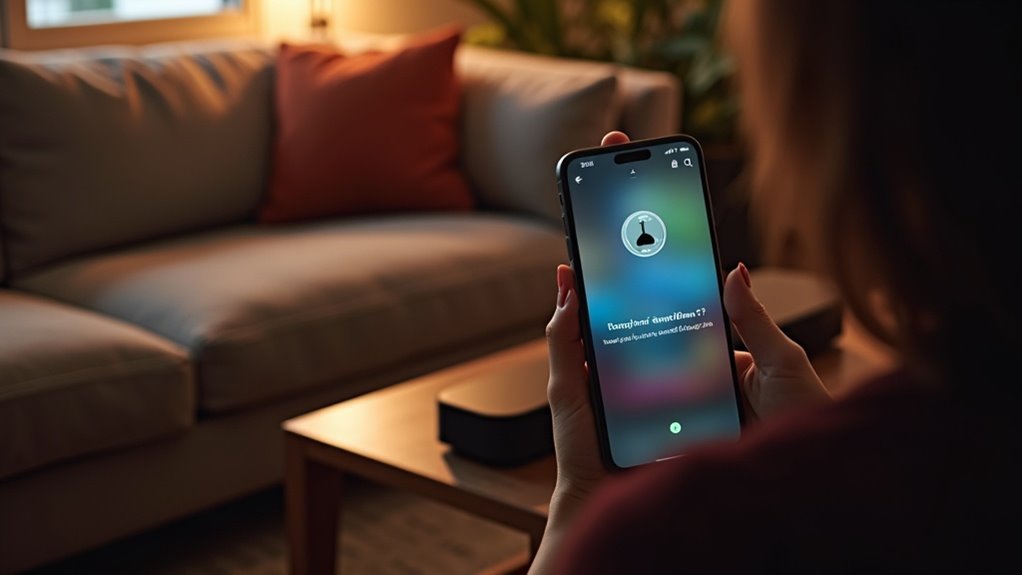
To rename your soundbar in an app, begin by ensuring it’s connected to your home network. Open the relevant app, such as Bose SoundTouch, and log in. Tap the Menu icon, navigate to Settings, and then select Speaker Settings. Locate your soundbar, enter a new name that reflects its location or purpose, and tap Save. If you experience any issues, check the app’s connection status or consider updating it. There’s more to discover about effectively organizing your soundbar names!
Key Takeaways
- Ensure your soundbar is connected to the home network and the appropriate soundbar management app is installed.
- Open the app, access the menu, and navigate to Settings and Speaker Settings specifically for soundbars.
- Locate the soundbar you wish to rename and select it for editing.
- Enter the new name that reflects the soundbar’s purpose or location and save your changes.
- If issues arise, check connectivity, update the app, or re-add the soundbar if necessary for optimal performance.
Understanding the Importance of Naming Your Soundbar
When it comes to organizing your audio devices, naming your soundbar might seem like a small detail, but it can make a significant impact.
A clear, custom name enhances accessibility within the app, allowing you to easily identify and control multiple soundbars in different rooms. By reflecting its placement, such as “Living Room Soundbar,” you streamline your settings and minimize confusion during operation.
Regularly updating the name as its location or function changes helps keep your audio experience organized.
Ultimately, a thoughtful name not only personalizes your soundbar setup but also fosters a more enjoyable, user-friendly interface for all your audio devices.
Preparing to Rename Your Soundbar
To rename your soundbar effectively, start by ensuring it’s connected to your home network and that you’ve installed the appropriate management app on your device.
For Bose soundbars, use the Bose SoundTouch app and make sure you’re logged into your account. Once inside the app, familiarize yourself with the menu by accessing the settings section, typically located in the upper corners of the interface.
From there, identify the soundbar you want to rename from the list of connected devices. Have a new name ready that reflects its purpose or location in your home for easier organization within the app.
Accessing the App for Renaming
Accessing the app for renaming your soundbar is straightforward, making it easy to customize its name for better organization.
Start by opening the SoundTouch app and tapping the Menu icon in the upper-left corner. From there, navigate to Settings and select Speaker Settings to find the soundbar you want to rename.
Once you locate it, tap the Speaker Name field to enter your preferred name, which simplifies identifying your soundbar within the app.
Don’t forget to confirm your change by tapping Save at the bottom of the screen. Regular updates enhance organization, especially when managing multiple soundbars.
Steps to Rename Your Soundbar
Renaming your soundbar is a straightforward process that can enhance your overall experience and organization.
To get started, open the app and tap the Settings icon located in the upper-right corner. From there, navigate to My Bose and select the soundbar you wish to rename.
Next, tap the Speaker Name field to enter a custom name that you’ll easily recognize, especially if you have multiple soundbars. After entering your desired name, be sure to tap Save at the bottom of the screen to confirm the changes.
Regularly updating your soundbar’s name can improve accessibility and organization within the app, making it even easier to enjoy your audio experience.
Troubleshooting Common Renaming Issues
If you’re having trouble renaming your soundbar, there are a few common issues you can troubleshoot to get things back on track.
First, verify you’re using the correct app for your specific soundbar brand, such as the Bose app for Bose soundbars. Ensure that your soundbar is properly connected to your account and isn’t experiencing any connectivity issues.
If the renaming option isn’t visible, try signing out and back into your account to refresh the app. For persistent problems, consider removing the soundbar from your account and then re-adding it.
Lastly, make sure the app is updated to the latest version for optimal functionality.
Alternative Methods for Renaming Your Soundbar
While you might think renaming your soundbar is only possible through its dedicated app, there are alternative methods to achieve this.
If you’re using the SoundTouch app, tap the Menu icon in the upper-left corner, go to Settings > Speaker Settings, and select your soundbar to rename it.
Alternatively, in the Bose app, use the Settings icon in the upper-right corner, choose your soundbar from the My Bose menu, and enter a new name.
After renaming, double-check that the new name displays correctly in both the app and on the soundbar for consistent identification.
Tips for Organizing Your Soundbar Names
When organizing your soundbar names, start by reflecting their room location, such as “Living Room Soundbar,” for clarity.
Use distinct, descriptive names to easily differentiate between multiple soundbars.
Keeping it simple ensures a user-friendly experience and streamlines navigation in your soundbar app.
Reflect Room Location
Naming your soundbar to reflect its room location can greatly enhance your organization and control within the app. When you rename your soundbar, consider using names like “Living Room Soundbar” or “Bedroom Soundbar.”
This simple customization helps differentiate between multiple devices in your home. If you have different setups for various activities, such as gaming or movie watching, you might opt for names like “Gaming Soundbar” or “Movie Room Soundbar.”
Regularly updating these names as your room arrangements or usage change keeps your system organized, making it intuitive to locate and control your soundbars effortlessly.
Use Descriptive Names
Descriptive names can greatly enhance your soundbar organization on this website. By renaming your devices thoughtfully, you create an organized system that makes it easier to identify each soundbar.
Consider these tips:
- Use location or purpose: Name your soundbars “Living Room Soundbar” or “Bedroom Entertainment Center.”
- Include brand or model: If you have multiple devices, add details like “Sony Living Room Soundbar” for clarity.
- Keep it concise: Aim for under 20 characters to guarantee names display well in the app.
Regularly update names to reflect any changes and maintain a cohesive naming convention across all your devices.
Keep It Simple
Keeping your soundbar names simple can enhance your home audio experience.
To rename your soundbars, tap the Settings icon in your app and choose clear names that indicate their location, like “Living Room Soundbar.” Use a consistent naming format, such as “Brand_Room_Device Type,” to easily manage multiple devices.
Regularly check and update your soundbar names for clarity, especially if you move devices. Ensure the names are easy to remember and pronounce, improving your interactions with smart home systems.







