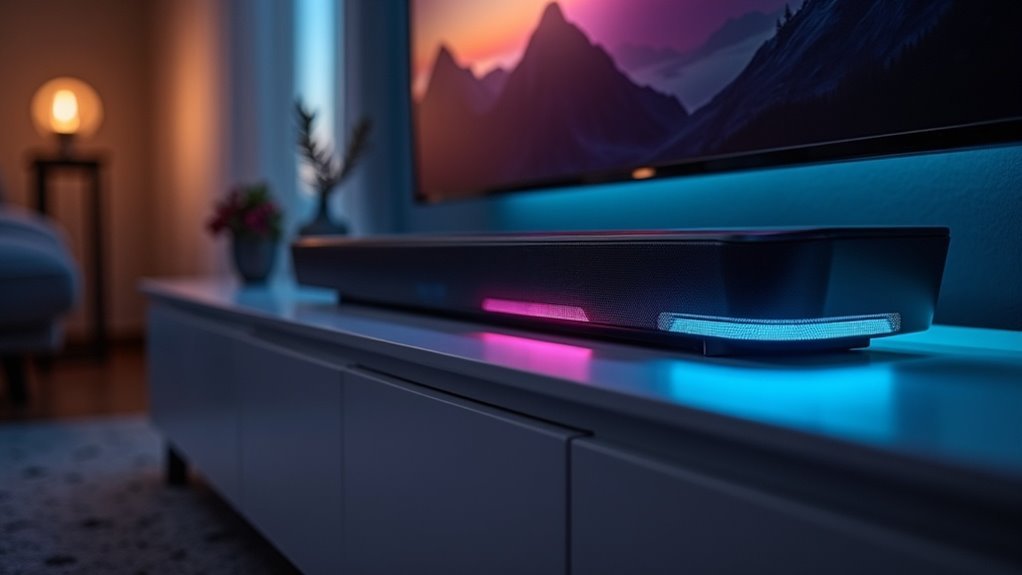
To disable LED lights on your soundbar, first check the user manual for built-in settings that may allow you to adjust brightness or toggle visibility. Some soundbar models don’t support independent LED controls. If no options exist, consider using opaque tape to cover the lights without hindering functionality. If you experience persistent issues with LED behavior, try power cycling the device and ensuring proper connections. For more solutions, you can find additional insights on managing LED distractions within your soundbar setup.
Key Takeaways
- Check the user manual for specific settings regarding LED behavior on your soundbar model.
- Look for an INDICATORS button on the remote to toggle LED visibility.
- Adjusting the volume to “off” may dim the LED lights but won’t turn them off completely.
- Use small pieces of opaque tape to block the LED lights without affecting functionality.
- Ensure firmware updates are applied, as they may introduce new LED control features.
Understanding LED Indicators on Your Soundbar
When you use a soundbar, understanding the LED indicators is essential, as they provide important information about the device’s status.
Solid LED lights usually indicate that power is on and an input source is active. In contrast, flashing LED lights may signal pairing mode, input switching, or errors.
Solid LED lights mean power is on and input is active, while flashing lights indicate pairing, input switching, or errors.
Generally, you can’t turn off the LED light independently, as it serves a functional purpose. However, some models allow you to adjust LED brightness or temporarily mute the light using specific remote button combinations.
For detailed information on LED behavior, refer to your soundbar’s user manual, which can help you maximize your soundbar experience.
Checking for Built-in Settings
Exploring built-in settings on your soundbar can reveal options for managing the LED indicators.
Start by checking your soundbar’s manual to see what options are available regarding LED behavior. Some models, like the HT-S350, mightn’t offer independent controls for LED lights.
Look for a button on the remote, such as the INDICATORS button, which may toggle visibility. Additionally, adjusting the volume to “off” can dim the LED, though it won’t turn it off entirely.
If you’re not finding suitable settings, consider checking for a firmware update, as newer versions might offer additional features or controls for your soundbar.
Non-invasive Solutions for LED Lights
Although many soundbars lack a direct option to disable LED lights, you can employ non-invasive methods to lessen their visibility. Here are some practical solutions:
| Method | Effectiveness | Notes |
|---|---|---|
| Adjust Volume to Off | Moderate | LED dims but remains on |
| Check User Manual | Variable | Some models allow brightness adjustments |
| Apply Small Tape | High | Completely blocks visibility |
These solutions help maintain your soundbar’s functionality without compromising its design. User feedback has influenced manufacturers, so future models may offer better LED visibility options, enhancing the overall user experience.
Using Tape to Block Light
If you find the LED lights on your soundbar distracting, using opaque tape can provide a simple yet effective solution.
Cut small pieces of opaque tape and carefully place them over the LED lights on your soundbar. This method reduces visibility without affecting the soundbar’s functionality.
Make sure the tape doesn’t block any essential functions or vents, as that could impair performance. Opt for tape that’s easy to remove and leaves no residue, allowing for adjustments later.
This non-invasive approach offers a quick fix for minimizing distractions during TV viewing while preserving your soundbar’s usability.
Troubleshooting Common LED Issues
LED issues can sometimes disrupt your soundbar experience, leading to confusion or frustration.
Here are some common troubleshooting steps to take into account:
- Check the User Manual: Refer to your soundbar’s manual for specific LED behaviors related to your model.
- Power Cycle: Unplug your soundbar for 30 seconds if the LEDs are stuck or frozen.
- Verify Connections: Confirm your soundbar is properly connected and check for interference from nearby Bluetooth devices.
- Consult Manufacturer’s Guidelines: Look for options to control LED brightness or turn them off in your soundbar’s documentation.
These steps should help you resolve most LED-related issues effectively.
Importance of Avoiding Device Modifications
Modifying your soundbar might seem like a quick fix to disable those bright LED lights, but it can lead to serious consequences.
Opening the device can void your warranty and risk damaging internal components. Many soundbars don’t offer factory options to turn off LED indicators, so sticking to manufacturer guidelines is essential.
Instead of invasive changes, consider non-invasive solutions like using tape to cover the LEDs, preserving your device’s integrity. Engaging with manufacturer support or community forums dedicated to soundbars can also yield safer alternatives.
Engaging With Community Support
How can you effectively manage the bright lights on your soundbar without compromising its functionality? Engaging with community support can provide valuable insights specifically for soundbar users. Here’s how:
- Join Manufacturer Forums: Participate in discussions on platforms like Sony’s forums, where soundbar users share their experiences and solutions.
- Ask Questions: Don’t hesitate to inquire about LED light management solutions specifically related to soundbars.
- Explore Non-Invasive Solutions: Consider using tape to cover distracting lights on your soundbar without altering the device’s functionality.
- Stay Informed: Learn about firmware updates and product improvement suggestions from fellow soundbar users to enhance your experience.







