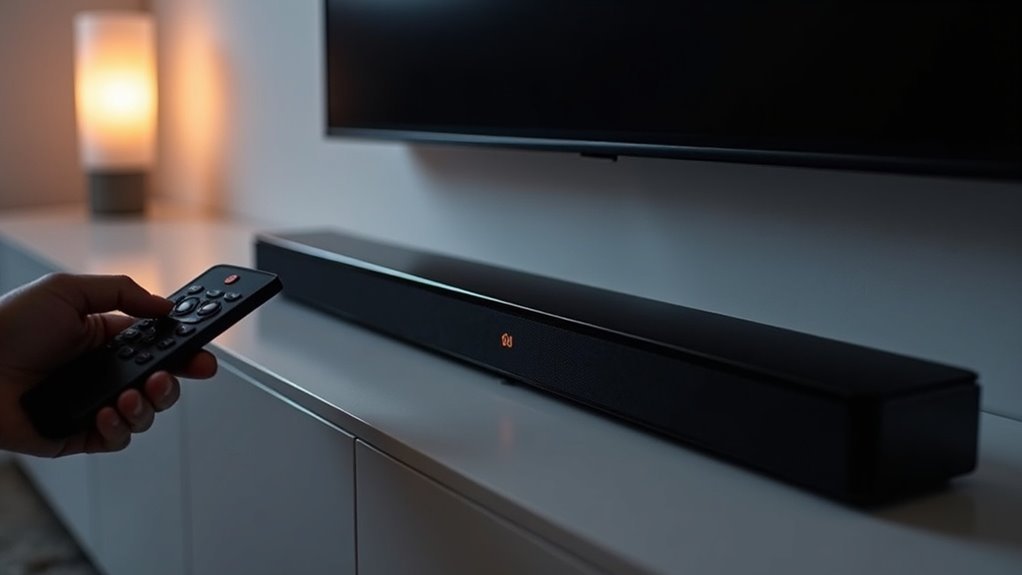
To disable the auto power feature on your soundbar, hold the left direction button on the remote for over 5 seconds to deactivate Auto Power Link. If you wish to turn off Anynet+, hold the right direction button. For extended inactivity, you can temporarily extend the power-off timer by pressing POWER and VOLUME DOWN together for 10 seconds. By managing these settings, you can customize your audio experience further. Explore more troubleshooting options and tips for better control over your soundbar.
Key Takeaways
- To disable Auto Power Link, hold the left direction button on the remote for over 5 seconds.
- Deactivate Anynet+ by holding the right direction button on the remote.
- For a temporary extension of the auto power-off timer, hold the POWER and VOLUME DOWN buttons for 10 seconds.
- If issues persist, reset the soundbar by holding SOURCE, VOLUME +, and VOLUME – for 10 seconds.
- Consult the user manual for specific instructions related to your soundbar model for precise settings.
Understanding Auto Power Features
When connecting your soundbar to your TV, understanding the Auto Power features is crucial for optimizing your audio setup.
The Auto Power Link feature allows your soundbar to automatically power on when the TV is turned on, providing a seamless audio experience via an optical connection. By default, this feature offers convenience, removing the need for manual activation.
If you prefer to disable Auto Power Link, you can easily do so by pressing and holding the left direction on your soundbar’s remote for over five seconds.
Customize your audio experience to suit your preferences by mastering these functionalities.
Disabling Auto Power With Button Combinations
To disable auto power features on your soundbar, you’ll use specific button combinations on the remote.
For instance, holding the left direction for over 5 seconds deactivates Auto Power Link, while the right direction does so for Anynet+.
Understanding these processes can help you manage your soundbar’s power settings more effectively.
Button Combination Process
Disabling the Auto Power Link feature on your soundbar is straightforward, especially if you’re using the remote control.
To disable it, simply hold the left direction button on the remote for over 5 seconds. This feature is activated by default when you connect via optical connection, allowing the soundbar to turn on and off with your TV.
By disabling Auto Power Link, you prevent the soundbar from automatically powering on when the TV turns on, enabling you to control its power manually.
This step is essential for independent use of your soundbar without relying on the TV’s power button.
Temporary Extension Method
One effective way to temporarily extend the auto power-off timer on your soundbar involves a simple button combination.
By pressing and holding the POWER and VOLUME DOWN buttons simultaneously for 10 seconds, you can increase the timer from the default 15 minutes of inactivity to approximately 4 hours.
This temporary extension is especially useful for maintaining soundbar activity during extended periods without audio playback, such as during movie marathons or gaming sessions.
Remember, this method won’t disable the auto power feature entirely; it merely prolongs its activation period.
The timer resets to the default setting upon the next power cycle of the soundbar, so keep that in mind when planning your viewing or listening experience.
Troubleshooting Reset Options
Managing auto power settings on your soundbar can be essential for an uninterrupted audio experience.
To disable Auto Power Link, hold the left direction button on your remote for over 5 seconds. If your soundbar uses Anynet+, press the right direction button for the same duration.
Setting your soundbar to D.IN mode can also help manage power settings effectively.
In some models, a reset may be necessary; hold down the SOURCE, VOLUME +, and VOLUME – buttons simultaneously for 10 seconds.
Always consult your user manual to verify you’re using the correct button combinations for your specific soundbar features.
Connecting Your Soundbar via Optical Cable
To connect your soundbar via optical cable, begin by removing the plastic caps from both ends of the cable and securely insert it into the soundbar’s D.IN port and the TV’s optical output.
Once connected, switch the soundbar to D.IN mode to ensure it detects the optical signal.
If you wish to utilize the Auto Power Link feature, it’s activated by default; however, you can easily toggle it by holding the left direction on the remote for more than 5 seconds while in D.IN mode.
Enjoy enhanced audio with your soundbar!
Optical Cable Setup Guide
When connecting your soundbar via optical cable, begin by removing the plastic protector caps from both ends of the cable.
Next, follow these steps for a successful connection:
- Insert one end of the optical cable into the optical output port on your TV.
- Connect the other end to the optical input port on the soundbar.
- Set the soundbar to D.IN mode using the Source button on the remote or the soundbar itself.
This optical connection is essential for enabling Auto Power Link functionality, allowing your soundbar to power on with the TV seamlessly.
Enjoy enhanced audio experiences with your soundbar setup!
Enable Auto Power Link
Enabling Auto Power Link for your soundbar is straightforward and enhances your overall audio experience.
First, connect your soundbar to your TV using an optical cable, ensuring you remove any plastic protector caps from the cable.
Next, set the soundbar to D.IN mode by pressing the Source button on the remote or the soundbar itself.
Auto Power Link is activated by default, allowing the soundbar to power on automatically when the TV turns on.
If you wish to deactivate this feature, hold the left direction on the remote for over 5 seconds.
Please note that this feature is exclusive to optical connections, which are commonly used for soundbars to achieve high-quality audio output.
Troubleshoot Sound Issues
Troubleshooting sound issues with your soundbar connected via optical cable is essential for ensuring a seamless audio experience.
Follow these steps to troubleshoot effectively:
- Ensure the optical cable is securely connected to both the soundbar and the TV.
- Set your soundbar to D.IN mode to activate the optical connection.
- Check your TV’s audio output settings to confirm they’re configured to send audio through the optical output.
If sound issues persist, consider activating Auto Power Link by holding the left direction on the remote for over 5 seconds.
Additionally, inspect the optical cable for any signs of damage.
Using HDMI ARC and Anynet+ for Control
Using HDMI ARC and Anynet+ can greatly enhance your soundbar experience by simplifying control over multiple devices.
To utilize Anynet+, connect your soundbar to the TV’s HDMI (ARC) port. This allows the soundbar to automatically switch to TV ARC mode within two seconds, streamlining power control.
If you need to deactivate Auto Power Link, set the soundbar to D.IN mode with an optical connection, then hold the left direction on the remote for over five seconds.
Additionally, to deactivate Anynet+, hold the right direction for five seconds, as this feature is enabled by default in models from 2020 and later.
Troubleshooting Power Issues
Even with features like HDMI ARC and Anynet+ simplifying control, you might still encounter power issues with your soundbar.
Here are some troubleshooting steps to consider:
- Check for loose power cables or try a different wall outlet to ensure a stable connection.
- Verify all connections, including optical or HDMI cables, are secure and undamaged to facilitate proper audio transmission.
- If your soundbar is unresponsive, perform a reset by holding down the power and volume buttons simultaneously, following your model’s specific instructions.
If issues persist, check for firmware updates from the manufacturer to ensure your soundbar is running the latest software.
If these steps don’t resolve the problem, don’t hesitate to contact customer support for further assistance tailored to your soundbar needs.
Seeking Further Assistance From Support
When you’re having difficulty disabling Auto Power on your soundbar, reaching out for support can be an essential step. Our platform offers various options to help you navigate this issue effectively.
| Support Method | Description | Contact Info |
|---|---|---|
| Online Chat | Communicate directly with experts | [Website Link] |
| Members App | Get expert help on your mobile device | Download from App Store |
| Email/Phone | Traditional support methods | Check website for info |
Before contacting support, have your soundbar model number handy. You can also refer to the user manual for specific instructions on Auto Power settings.







