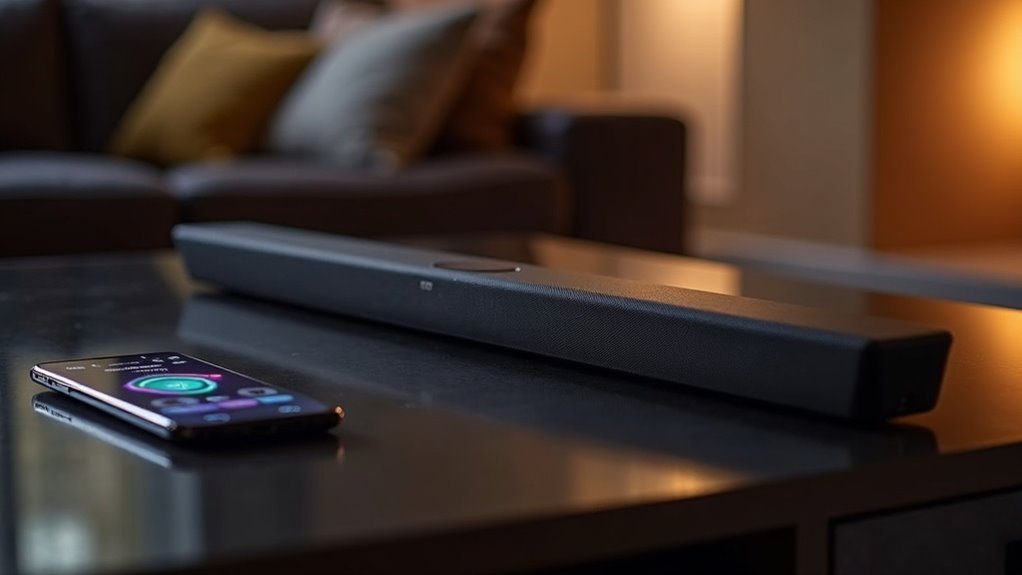
To pair your phone to a soundbar, ensure that both devices are powered on. Switch the soundbar to Bluetooth mode, which is typically indicated by a “BT” light. On your phone, navigate to Settings and enable Bluetooth. Search for the soundbar in the list of available devices and select it to initiate the connection. You should hear a confirmation tone or see a light on the soundbar indicating a successful pairing. If you encounter any issues, refer to our troubleshooting section for common pairing problems specific to soundbars.
Key Takeaways
- Power on the soundbar, set it to Bluetooth mode, and ensure the Bluetooth indicator shows discoverability.
- Enable Bluetooth on your phone through the Settings menu or quick access panel.
- Search for the soundbar in your phone’s available Bluetooth devices list and select it to initiate pairing.
- Confirm successful connection by checking for a tone or light on the soundbar and a notification on your phone.
- If issues arise, ensure device compatibility, proximity, and restart both devices to resolve any glitches.
Preparing Your Soundbar for Pairing
Before you begin pairing your phone to the soundbar, ensure that the soundbar is powered on and the volume is set to a comfortable level.
Next, switch the input source of the soundbar to Bluetooth mode, which you can typically do using the remote control or a button on the device. Look for an indicator, often labeled “BT” or “Bluetooth,” that signifies it’s discoverable.
If necessary, press and hold the Bluetooth or Source button until a status light indicates that the soundbar is in pairing mode.
Finally, keep your soundbar within 3–10 feet of your phone to ensure a stable Bluetooth connection.
Activating Bluetooth Mode on Your Phone
How do you activate Bluetooth mode on your phone to connect to your soundbar? It’s simple! Follow these steps:
- Open the Settings menu on your phone and select Bluetooth.
- Toggle the Bluetooth button to the On position, making your device discoverable for your soundbar.
- If your phone has a quick access panel, swipe down from the top of the screen and tap the Bluetooth icon.
- Watch for notifications indicating Bluetooth is on and scanning for available devices, including your soundbar.
Once you’ve completed these steps, your phone is ready to connect to your soundbar.
Just ensure Bluetooth is activated before proceeding with the pairing process.
Pairing Your Phone With the Soundbar
Ready to enjoy your soundbar’s rich audio? First, ensure your soundbar is powered on and set to Bluetooth mode, which is typically indicated by a display showing “BT” or “Bluetooth.”
Next, access your phone’s Bluetooth settings and enable Bluetooth to search for available devices. Look for your soundbar in the list; it may appear as “Samsung Soundbar” or the specific model name. Select it to initiate pairing.
You’ll hear a confirmation tone or see a light on the soundbar, signaling a successful connection. Once paired, your soundbar will automatically reconnect to your phone when both devices are on and within range. Enjoy your enhanced audio experience!
Confirming the Connection
Once you’ve paired your phone with the soundbar, confirming the connection is a straightforward process.
Follow these steps to guarantee everything’s set up correctly:
- Check for a tone or confirmation light on the soundbar indicating successful pairing.
- Look for a notification on your phone confirming the Bluetooth connection.
- Ensure the soundbar remains in Bluetooth mode for automatic reconnection when both devices are powered on and within range.
- Verify that audio output is directed to the soundbar by checking your phone’s sound settings to confirm Bluetooth is enabled.
This will help you enjoy seamless audio playback through your soundbar!
Troubleshooting Common Pairing Issues
When you encounter issues pairing your phone to a soundbar, it’s important to check device compatibility first.
Bluetooth interference can also disrupt the connection, so ensure both the soundbar and your phone are close and unobstructed.
If problems persist, resetting the connection settings on the soundbar may be necessary to establish a successful link.
Device Compatibility Check
Before you attempt to pair your phone with the soundbar, it’s crucial to verify both devices are set up correctly to avoid common pairing issues.
Follow these steps to guarantee compatibility:
- Ensure your phone’s Bluetooth is activated and discoverable.
- Check that the soundbar is in pairing mode, indicated by a “BT READY” message.
- Look for any previous connections on the soundbar; clear them by holding the Bluetooth button for 5 seconds if necessary.
- Confirm your phone’s Bluetooth settings are updated and that it’s within 3–10 feet of the soundbar for optimal connectivity.
A quick restart of both devices can also help resolve any issues.
Bluetooth Interference Solutions
Even after confirming compatibility between your phone and soundbar, you might still encounter pairing issues due to Bluetooth interference. To minimize this, keep other wireless devices at least 3–10 feet away from your soundbar during the pairing process.
Restart both your phone and the soundbar to clear any temporary glitches. If problems persist, navigate to your phone’s Bluetooth settings, forget the soundbar, then attempt to reconnect.
Additionally, check for any software updates for both devices; outdated firmware can lead to compatibility issues. Lastly, ensure that your soundbar isn’t connected to another device, as this can prevent it from entering pairing mode.
Resetting Connection Settings
If you’re still having trouble pairing your phone to your soundbar, resetting the connection settings can often resolve the issue. Follow these steps:
- Power off the soundbar, wait a few seconds, then turn it back on to clear any glitches.
- Hold the Bluetooth button for 5 seconds to clear previous pairings stored in the soundbar.
- Turn off your phone’s Bluetooth, then turn it back on to refresh the connectivity options.
- Move the devices within 3–10 feet of each other to enhance the Bluetooth signal strength.
If problems persist, consult your soundbar’s user manual for specific instructions on resetting connection settings tailored for your model.
Enjoying Music Through Your Soundbar
To enjoy music through your soundbar, ensure that it’s powered on and set to Bluetooth mode for easy pairing with your device.
Once in Bluetooth mode, navigate to your device’s Bluetooth settings and select your soundbar from the list of available devices.
Navigate to your device’s Bluetooth settings and select your soundbar for seamless pairing.
After a successful connection, play your favorite music, and it will stream directly through the soundbar, significantly enhancing your audio experience.
Adjust the volume settings to match your preferences and the music genre.
This wireless streaming option creates a tidy setup, allowing friends to easily connect and share their playlists during gatherings.
Enjoy the rich sound quality that a soundbar provides!
Additional Features and Benefits of Wireless Streaming
While enjoying your favorite tunes or movies, the additional features and benefits of wireless streaming with soundbars can greatly enhance your experience.
Here are some key advantages:
- Cable-Free Setup: Wireless streaming eliminates physical cables, creating a cleaner and more organized entertainment space for your soundbar setup.
- Device Compatibility: Most soundbars priced over $100 come equipped with Bluetooth (BT), allowing seamless connections with a variety of devices, from smartphones to tablets.
- Multi-User Access: Wireless streaming enables multiple users to connect to the soundbar simultaneously, making it perfect for social gatherings and shared listening experiences.
- Superior Audio Quality: Soundbars are designed to deliver high-quality audio, elevating your listening experience far beyond standard TV speakers.
With user-friendly interfaces, controlling your audio sources becomes effortless.
Enjoy the freedom and flexibility of wireless streaming with your soundbar!







