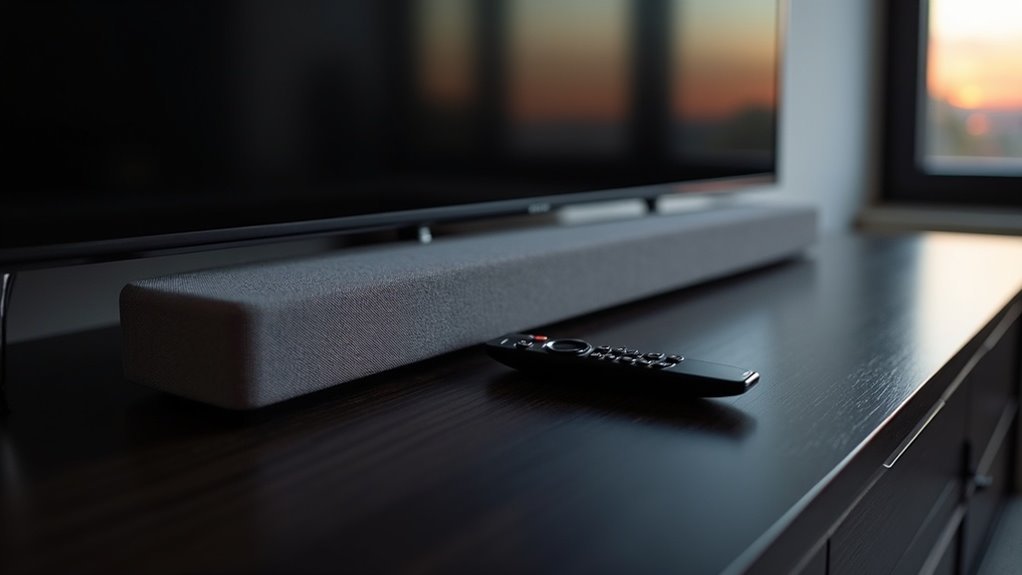
To pair your TV remote to a soundbar, start by adjusting the TV’s audio output settings to direct sound to the soundbar. If you’re using an optical cable, ensure the soundbar is set to D.IN mode. For HDMI ARC connections, connect the soundbar’s HDMI OUT to the TV’s HDMI ARC port and activate the Anynet+ feature. Verify that the soundbar is on the correct input mode. If you encounter any issues during the pairing process, additional troubleshooting steps are available to assist you.
Key Takeaways
- Verify that your soundbar is compatible with HDMI ARC or optical connection for successful remote pairing.
- Make sure the soundbar is powered on and adjusted to the appropriate input mode (either HDMI (ARC) or optical).
- Activate the Anynet+ feature on your TV, allowing you to control the soundbar using your TV remote.
- Consult the user manual for your soundbar to find specific programming codes or instructions for pairing.
- If the soundbar remote is unresponsive to commands from the TV remote, consider replacing its batteries.
Setting the Audio Output on the TV and Enabling TV Control on the Soundbar
To get your soundbar working effectively with your TV remote, begin by navigating to the TV’s Settings.
Select Sound, then Audio Output, and choose your soundbar from the list.
If you’re using an optical cable, ensure the soundbar is set to D.IN.
For HDMI ARC connections, activate the Anynet+ feature on your TV; this enables seamless control of the soundbar with your TV remote.
Additionally, make sure to turn on the Auto Power Link feature on the soundbar, which allows it to respond automatically when the TV is powered on.
Lastly, confirm that the correct audio output is selected to ensure sound is routed to the soundbar instead of the TV’s internal speakers.
What to Do if Connecting With a Digital Optical Cable
Connecting your soundbar to the TV with a digital optical cable is a straightforward process that guarantees high-quality audio. First, plug the optical cable into the TV’s optical audio output and the soundbar’s optical input, ensuring you remove any plastic caps. Next, set the soundbar to D.IN mode using your remote. If your soundbar has an Auto Power Link feature, activate it for easier control. Then, navigate to your TV’s settings, select Sound, and choose the soundbar as the output device. If you experience issues with volume control, check your remote’s functionality.
| Step | Action |
|---|---|
| 1 | Plug in optical cable |
| 2 | Set soundbar to D.IN mode |
| 3 | Activate Auto Power Link (if available) |
| 4 | Select soundbar in TV settings |
What to Do if Connecting With HDMI and Using ARC
If you’ve chosen a modern connection method, using HDMI and ARC (Audio Return Channel) can greatly enhance your soundbar setup.
Start by connecting your soundbar’s HDMI OUT to your Samsung TV’s HDMI (ARC) port. Next, enable the Anynet+ feature on your TV, which allows for automatic control of the soundbar when you power it on or off.
Switch your soundbar to D.IN mode, and it should automatically transition to TV ARC mode within two seconds.
Finally, check your TV’s audio output settings to ensure sound is directed through the HDMI ARC connection.
This setup allows you to control the soundbar’s volume and power with a single remote, eliminating the need for an optical cable and providing a streamlined audio experience.
Soundbar Remote Is Not Working
Having trouble with your soundbar remote can be frustrating, especially when you want to enjoy your favorite shows.
Dealing with a malfunctioning soundbar remote can be exasperating, especially when you’re eager to dive into your favorite programs.
If your soundbar remote isn’t working, follow these steps:
- Ensure your soundbar is powered on and within range of the TV remote.
- Check that the soundbar is set to the correct input mode (e.g., HDMI (ARC) or optical).
- Replace the batteries in the soundbar remote to eliminate power issues.
- Refer to the user manual from your soundbar manufacturer for specific programming codes or instructions, particularly if you’re using a universal remote to control the volume.
For more detailed troubleshooting tips and insights on soundbars, explore our website dedicated to enhancing your audio experience.
Need a Replacement Remote for the Soundbar
When your soundbar remote goes missing or stops working, finding a replacement is essential for maintaining an enjoyable audio experience.
Start by visiting the Samsung Parts website and entering your soundbar model to check for availability. It’s important to have your model number handy, as it plays a crucial role in locating the correct replacement remote.
Some models may have limited options, so don’t hesitate to reach out to customer support if you’re facing difficulties.
Additionally, you can explore third-party sellers, but make sure to verify compatibility with your specific soundbar model before making a purchase.
Keeping a record of your soundbar’s model and serial number will assist you in future replacement searches.







