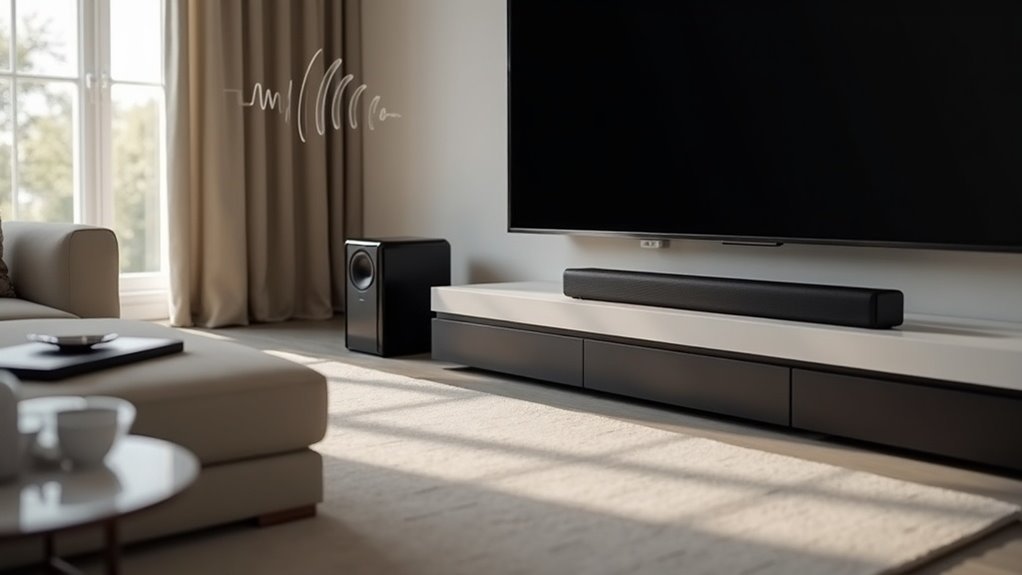
To pair your subwoofer to a soundbar, start by powering both devices on and ensuring they’re within 15 feet of each other. For automatic connection, simply turn on the soundbar; a solid blue LED indicates success. If automatic pairing fails, press the ID SET button on the subwoofer, then hold the Mute button on the soundbar’s remote while turning on the soundbar. A solid blue LED confirms the connection. For additional assistance, refer to our troubleshooting tips and support options specifically for soundbars.
Key Takeaways
- Ensure both the soundbar and subwoofer are powered on and positioned within 15 feet for optimal connectivity.
- For automatic pairing, power on the soundbar and look for a solid blue LED LINK indicator.
- To manually connect, press the ID SET button on the subwoofer until the blue LED blinks quickly.
- With the soundbar turned off, hold the Mute button until you see the ID SET notification, then power on the soundbar.
- A solid blue LED will indicate a successful connection; if it continues to blink, please repeat the pairing process.
Automatic Connection
To successfully pair your subwoofer with a soundbar automatically, first verify that both devices are powered on and within a reasonable distance.
Connect their power cords and plug them into a wall outlet. Once the soundbar is turned on, the subwoofer should pair automatically if positioned within 15 feet.
A successful connection is indicated when the blue LED LINK indicator on the subwoofer stops blinking and glows continuously.
If the LED continues to blink, the automatic connection has failed, and troubleshooting may be necessary to establish a stable link between the soundbar and the subwoofer.
Manual Connection
If the automatic connection fails, you can manually pair your subwoofer with your soundbar. Follow these steps:
- Ensure both the soundbar and subwoofer are powered on and plugged into a wall outlet.
- Press the ID SET button on the back of the subwoofer until the STANDBY light turns off and the Blue LED LINK starts blinking quickly.
- With the soundbar turned off, press and hold the Mute button on the remote until the ID SET notification appears on the display.
- Turn on the soundbar while the subwoofer’s Blue LED is still blinking.
A solid Blue LED indicates a successful connection, while a blinking LED means you need to restart the ID SET process.
Finalizing Connection
Finalizing the connection between your soundbar and subwoofer is essential for optimal audio performance.
Start by powering on the soundbar while ensuring the subwoofer’s Blue LED is blinking. This indicates that the connection process is underway. A solid Blue LED signifies a successful pairing.
Power on the soundbar and check for a blinking Blue LED on the subwoofer to initiate pairing.
If the Blue LED continues to blink, it means the connection has failed. In this case, turn off the soundbar and restart the pairing process from the beginning.
If issues persist after several attempts, please consult the user guide or reach out to customer support for assistance.
Ensuring a solid connection will greatly enhance your overall audio experience with your soundbar.
Troubleshooting Connection Issues
When you encounter pairing problems between your soundbar and subwoofer, it’s essential to evaluate both the connection status indicators and your environment.
If the subwoofer’s blue LED blinks continuously, it means the automatic connection has failed, prompting you to consider manual pairing steps.
Common Pairing Problems
Although pairing a subwoofer to a soundbar is typically a straightforward process, various issues can arise that hinder connectivity.
To troubleshoot common pairing problems specific to your soundbar and wireless subwoofer, consider the following:
- If the subwoofer’s LED is blinking, retry the pairing steps outlined in your soundbar’s manual.
- Ensure the subwoofer is within 15 feet of the soundbar to optimize wireless connectivity.
- For a manual connection, press the ID SET button on the subwoofer and the mute button on your soundbar’s remote.
- Power cycle both devices by unplugging them for a minute to reset and resolve persistent issues.
Connection Status Indicators
How can you effectively determine the connection status between your soundbar and subwoofer? The LED light indicators provide vital information:
| LED Color | Connection Status |
|---|---|
| Blinking Blue | Attempting to connect |
| Solid Blue | Connection established |
| Blinking Green | Trying to connect |
| Solid Green | Successful connection |
| Red | Bad connection or in standby mode |
| Off | Power cable not connected |
If the LED continues to blink, restart the pairing process. Check power connections if the LED is red or off to ensure optimal functionality.
Manual Pairing Steps
If you encounter connection issues after checking the LED indicators on your soundbar and subwoofer, manual pairing can help resolve the problem.
Follow these steps for a successful connection:
- Ensure both the soundbar and subwoofer are powered on.
- Press and hold the Pair button on the back of the subwoofer until the LED blinks quickly.
- Press and hold the Pair or “Subwoofer” button on the soundbar’s remote or top panel until the subwoofer’s LED turns solid.
- If the LED remains red, hold the pairing button for 5 seconds to reset, then repeat the steps.
For the best connectivity, maintain a distance of less than 10 feet between the soundbar and subwoofer.
Checking Connection Status
To assess the connection status between your soundbar and subwoofer, observe the LED indicator colors on the subwoofer.
A blinking green LED shows the connection process is ongoing, while a solid green confirms a successful link.
In contrast, a red LED indicates a bad connection or standby mode, and if the LED is off, check that the power cable is properly connected to ensure your soundbar setup functions optimally.
LED Indicator Colors
The LED indicator colors on your soundbar provide essential information about its connection status with the subwoofer.
Understanding these colors can enhance your setup experience:
- Blinking Green: The connection process is ongoing between the soundbar and subwoofer.
- Solid Green: Successful connection confirmed; the soundbar is properly paired with the subwoofer.
- Red: Indicates a bad connection or standby mode; troubleshooting is required.
- Off: Power cable isn’t connected; check the power supply to the soundbar.
Different LED colors may vary by model, so refer to your specific user manual for precise indicator meanings.
Connection Status Troubleshooting
While ensuring a solid connection between your soundbar and subwoofer is crucial for optimal audio performance, troubleshooting the connection status can be simple.
If you notice a blinking green LED, it means your soundbar is attempting to connect. A solid green LED indicates that pairing has been successful.
On the other hand, a red LED signals a poor connection or that the subwoofer is in standby mode, which requires further attention. If the LED is off, make sure the power cable is correctly connected.
Additionally, confirm that your subwoofer is positioned within 15 feet of the soundbar for the best pairing results.
Additional Support Options
If you encounter challenges while pairing your subwoofer to a soundbar, several support options are available to assist you. Consider these resources:
- Manufacturer Websites: Many soundbar manufacturers provide online articles with resolution steps for pairing issues.
- Customer Support: Contact support teams from brands like TCL or Samsung for direct assistance regarding soundbar and subwoofer pairing.
- Community Forums: Engage with user forums to share experiences and solutions related to pairing soundbars and subwoofers.
- Social Media: Reach out to manufacturers on social platforms for additional insights on soundbar pairing.
For warranty information and product registration, please visit your specific soundbar or subwoofer brand’s support resources.
User Engagement and Feedback
How can user engagement enhance the support experience for pairing a subwoofer to a soundbar? Engaging users through surveys and community forums allows you to share insights on common issues, such as finding the right connections at the back of the soundbar.
User engagement through surveys and forums helps identify common issues, like connecting subwoofers to soundbars effectively.
Feedback mechanisms enable you to suggest improvements, ensuring support content evolves based on real experiences. Social media channels provide instant communication with support teams, enhancing responsiveness.
By regularly updating resources based on your feedback, companies can address prevalent concerns, ultimately improving your pairing experience and satisfaction with the soundbar-subwoofer combination.
Your input is essential for continuous enhancement of soundbar-related support.







