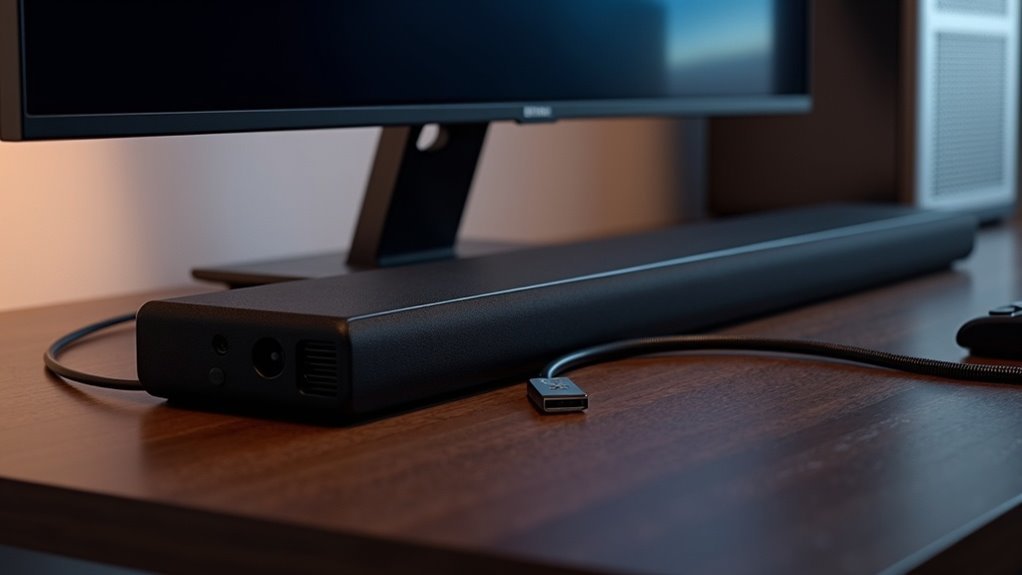
To connect a soundbar to your PC via USB, first, ensure that your soundbar supports USB audio input. Use the provided USB cable to connect it to a USB port on your computer. Then, navigate to your sound settings and set the soundbar as the default audio output device. Be sure to adjust the volume on both devices. If you’re experiencing issues, check for any driver updates as needed. For additional setup tips and troubleshooting advice, continue to explore our website dedicated to soundbars!
Key Takeaways
- Connect the soundbar to a functional USB port on your PC using the included USB cable for easy and efficient audio streaming.
- Set the soundbar as the default audio output device in your PC’s sound settings to ensure that all sound output is directed through the soundbar.
- Adjust the volume levels on both the soundbar and the PC to achieve optimal audio performance and clarity for an enhanced listening experience.
- Ensure the soundbar is powered on and that the USB connection is secure to guarantee proper functionality and avoid interruptions in sound.
- Check for any necessary drivers and refer to the user manual for specific setup instructions to maximize your soundbar’s performance.
Understanding Soundbar Compatibility With PCS
When considering the connection of a soundbar to your PC, it’s essential to ensure compatibility between both devices.
First, verify that your soundbar, particularly if it’s USB-powered, supports audio output through your computer’s USB ports. Dell soundbars, such as the SB522A and SB521A, are designed to work directly with compatible Dell monitors, making setup easier.
It’s important to ensure that your PC recognizes the soundbar as the default audio output in your sound settings to achieve optimal performance.
Furthermore, some computers may require updated drivers or software to ensure full functionality with your USB soundbar.
Always check the specifications to prevent any compatibility issues, ensuring a smooth audio experience.
Benefits of Using a Soundbar With Your Computer
Connecting a soundbar to your computer significantly enhances audio clarity and provides a richer sound experience that built-in monitor speakers simply can’t match. USB-powered soundbars, such as the Dell Slim Soundbar SB521A, are designed for easy setup and can help save valuable desk space. They draw power directly from your computer, eliminating the need for extra adapters. This plug-and-play functionality allows for convenient and immediate audio enhancement. Ultimately, using a soundbar elevates your multimedia experience, whether you’re gaming, streaming, or participating in video conferences.
| Feature | Benefits |
|---|---|
| Audio Quality | Superior clarity and depth |
| Easy Setup | Quick plug-and-play access |
| Design | Minimalist and space-saving design |
Required Components for USB Connection
To enjoy the enhanced audio experience a soundbar offers, you’ll need a few key components for a successful USB connection.
First, verify that your soundbar has USB audio input capability, which is common in models like the Dell Slim Soundbar SB521A. You’ll also require a USB cable for transmitting audio signals; this often comes included with the soundbar.
Connect it to a functional USB port on your desktop computer, and remember to set the soundbar as your default audio output device in your settings.
Additionally, some soundbars may require specific drivers or software, so be sure to check the user manual for any requirements unique to your model.
Enjoy the superior sound quality that a soundbar can bring to your audio experience!
Step-by-Step Guide to Connecting a Soundbar via USB
Before you start enjoying better sound with your soundbar, make certain it’s powered on and compatible with USB audio input.
Follow these steps to connect a soundbar via USB:
- Use a USB cable to connect your soundbar to an available USB port on your PC, which supplies both power and audio signal.
- Navigate to your computer’s sound settings and set the soundbar as the default audio output device.
- If needed, check for drivers to guarantee proper functionality and adjust volume settings on both the soundbar and computer for peak sound quality.
Enjoy your enhanced audio experience!
Configuring Sound Settings on Your PC
Once your soundbar is connected to your PC via USB, configuring the sound settings is crucial for optimal audio performance. Right-click the speaker icon in the taskbar and select “Playback devices” to access the Sound settings menu. In the Playback tab, locate your soundbar, select it, and click “Set Default” to ensure it serves as the primary audio output.
| Action | Description |
|---|---|
| Set Default | Make soundbar the primary output device |
| Adjust Volume | Verify volume levels are adequate on both devices |
| Access Properties | Right-click to tweak enhancements and sound levels |
| Check Connection | Confirm USB is securely connected and soundbar is powered on |
Feel free to make adjustments as needed for the best audio experience!
Troubleshooting Common Soundbar Connection Issues
If you’re experiencing issues with your soundbar, the initial steps to take are to check the power connection and ensure it’s properly linked to your PC.
If there’s no sound, confirm that the soundbar is set as the default output device in your audio settings.
No Sound Issues
When connecting your soundbar to a PC, you may not encounter any sound issues, but it’s always good to ensure everything is functioning properly.
Here are three steps to verify your setup:
- Check Connections: Ensure your soundbar is securely connected to the USB port, and that the cable is intact.
- Set Default Device: Access your computer’s sound settings to confirm that the soundbar is set as the default audio output device.
- Adjust Volume: Make sure the volume is turned up on both the soundbar and your computer, and verify that the soundbar is powered on.
If everything appears correct, enjoy the enhanced audio experience your soundbar provides!
Power Connection Problems
While enjoying your soundbar’s audio performance, you might encounter power connection problems that can disrupt your experience.
First, ensure your USB soundbar is securely plugged into a functioning USB port on your computer. If it doesn’t power on, check if your computer or monitor is turned on, as some soundbars draw power from them.
Try a different USB port or test the soundbar on another computer to troubleshoot further. Additionally, check for power-saving settings that may disable USB ports during sleep mode.
If problems persist, consult the user manual or contact customer support for assistance.
Alternative Connection Methods for Soundbars
If you’re looking for other ways to connect your soundbar to a PC, Bluetooth is a great wireless option that makes pairing simple.
Alternatively, using an AUX cable provides a quick and reliable wired connection.
Both methods offer flexibility depending on your setup and preferences, ensuring you can enjoy high-quality audio from your soundbar with ease.
Bluetooth Pairing Process
To enjoy your soundbar’s audio capabilities, you can easily connect it to your PC via Bluetooth. Just follow these simple steps:
- Power on your soundbar and press the pairing button to activate Bluetooth discoverability.
- On your PC, go to the Start menu, access Bluetooth settings, and select “Add Bluetooth or other device.”
- Choose your soundbar from the list of available devices, then confirm the connection.
Once paired, make sure to set the soundbar as your default audio output device in your computer’s settings for optimal performance.
Enjoy your enhanced sound experience with your soundbar!
AUX Cable Setup
Connecting your soundbar to a PC using an AUX cable is a straightforward process that provides a reliable wired audio solution for your home entertainment setup.
Start by inserting one end of the AUX cable into the computer’s audio output port, typically marked with a headphone icon. Then, connect the other end to the soundbar’s AUX input port.
Once connected, your PC should automatically route audio through the soundbar, allowing for immediate playback of your favorite music, movies, or games.
Ensure that the AUX cable is in good condition and securely connected to prevent any sound quality issues.
Finally, adjust the volume settings on both the soundbar and your computer to achieve your desired audio output level and enhance your overall listening experience.
Enhancing Your Audio Experience With a Soundbar
When you want to elevate your audio experience, a soundbar can make a significant difference in sound quality.
To fully enjoy better sound, follow these steps:
- Connect your soundbar via USB; if it’s USB-powered, you won’t need extra adapters.
- Set the soundbar as your default audio output in your PC settings for seamless audio through the soundbar.
- If you encounter issues, like no sound, try troubleshooting sound issues by checking connections and adjusting settings.
Using a USB-powered soundbar, such as the Dell Slim Soundbar SB521A, can truly enhance audio clarity for all your media needs.
Explore the various soundbar options available to find one that best suits your audio preferences and enhances your overall listening experience.







