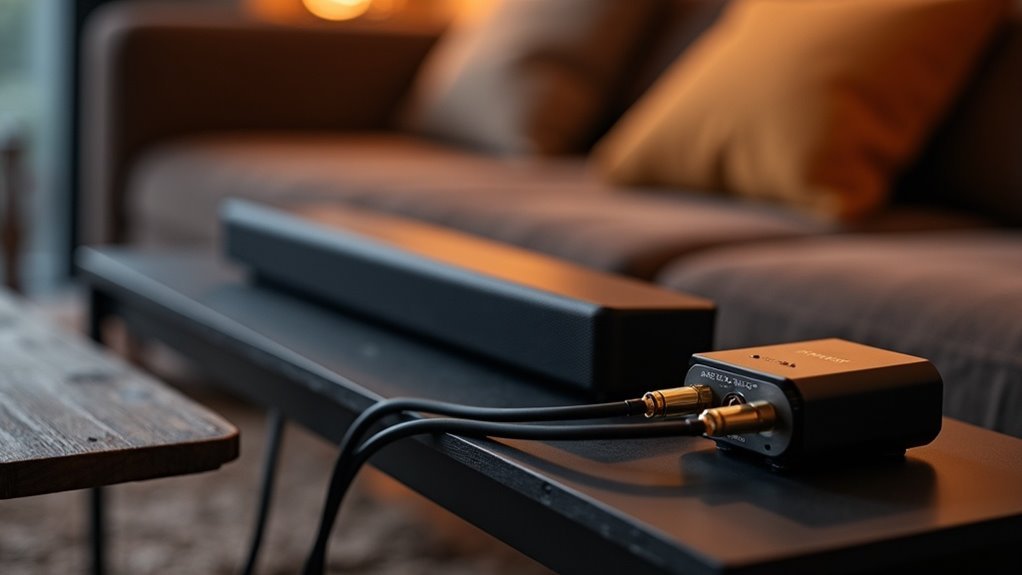
To connect your soundbar using an analog to optical converter, first gather a compatible DAC, RCA cables, and an optical cable. Connect your TV’s audio output to the DAC input with RCA cables, then link the DAC’s optical output to the soundbar’s optical input. Power on both devices, select the correct input on your soundbar, and adjust your TV’s audio settings to use optical output. Ensure all connections are secure for optimal sound quality; more information is available for your soundbar setup.
Key Takeaways
- Obtain an analog to optical converter and ensure it is compatible with your soundbar and TV specifications.
- Use RCA cables to connect the TV’s audio output to the input of the DAC (Digital to Analog Converter).
- Connect the DAC’s optical output to the optical input of your soundbar using an optical cable.
- Power on both the DAC and the soundbar, then select the correct input source on the soundbar.
- Go into your TV audio settings to disable the internal speakers and set the optical output as the primary audio source for optimal soundbar performance.
Understanding the Need for an Analog to Optical Converter
When connecting devices that have only analog outputs to a soundbar that requires optical inputs, an analog to optical converter (DAC) is crucial. This device converts the analog audio signal—such as RCA—into a digital optical signal, ensuring seamless compatibility with your soundbar.
Utilizing a DAC can significantly improve sound quality, as optical signals are less susceptible to interference compared to their analog counterparts. When choosing a DAC, it’s important to consider supported sample rates, bit depth, and overall audio quality to ensure it aligns with your soundbar’s specifications.
Typically, you’d connect the DAC’s analog input to your device and its optical output to the optical input of your soundbar for optimal performance.
Gathering the Necessary Equipment
Before you begin the connection process for your soundbar, it’s essential to gather all necessary equipment to guarantee a smooth setup.
You’ll need an analog to optical converter (DAC) that’s compatible with your TV model and soundbar brand. Make sure to have RCA cables for connecting your TV to the converter and an optical cable for linking the converter to your soundbar.
Additionally, check if your DAC requires an external power source, as some models do. Familiarize yourself with the input and output ports on both the converter and soundbar to confirm proper connections before moving forward.
Making the Connections
Now that you’ve gathered the necessary equipment, it’s time to make the connections for your soundbar.
Follow these steps for a successful setup:
- Connect the audio output of your TV or device to the input of the analog-to-optical converter using RCA cables.
- Use an optical toslink cable to connect the optical output of the converter to the optical input of your soundbar, ensuring both ends are secure.
- Power on both the DAC and soundbar, and select the appropriate input on the soundbar to receive audio.
Make sure to test the setup for sound output to confirm your soundbar is working properly.
Enjoy enhanced audio quality for your entertainment!
Configuring the Audio Settings
To guarantee ideal sound quality from your soundbar, it’s crucial to configure your TV’s audio settings correctly.
Start by accessing the audio settings menu to disable the internal speakers and select the optical output as your primary audio source. Confirm the audio format is compatible with your soundbar; typically, PCM or Stereo works best to prevent compatibility issues.
If you’re using an HDMI for external devices, check that their audio output is also set to the optical output.
Regularly update your TV’s firmware to maintain compatibility and consult your soundbar’s manual to ensure it’s set to receive audio through the optical input for the best performance.
Testing the Setup for Optimal Performance
Once you’ve connected your soundbar, it’s essential to test the setup for optimal performance. Follow these steps to ensure superior audio quality:
- Play a variety of media to evaluate sound clarity; pay attention to any distortion.
- Adjust volume levels on both your television and soundbar until the output feels balanced and immersive.
- Check for audio latency by ensuring synchronization with video; make adjustments in your TV’s audio menu if necessary.
If you experience any issues, double-check that the converter is powered on and that all cables are securely connected.
Finally, take advantage of the soundbar’s settings to tailor bass and treble to your preferred listening experience.







